> ## Documentation Index
> Fetch the complete documentation index at: https://docs.interviewflowai.com/llms.txt
> Use this file to discover all available pages before exploring further.
# Ashby integration
> Integrating InterviewFlow with Ashby enables powerful conversational AI candidate engagement and screening capabilities within your hiring workflow.
Integrating InterviewFlow with **Ashby** enables powerful conversational AI candidate engagement and screening capabilities within your hiring workflow. InterviewFlow lets you automate resume screenings, and invite candidates to complete AI voice interviews.
Below is how you can easily add AI candidate engagements and screenings to your open Interviewers, track candidate progress, and review interview results and candidate evaluations—all within Ashby.
## Follow these easy steps to set up the InterviewFlowAI integration with Ashby
### 1. Get API details from InterviewFlowAI portal
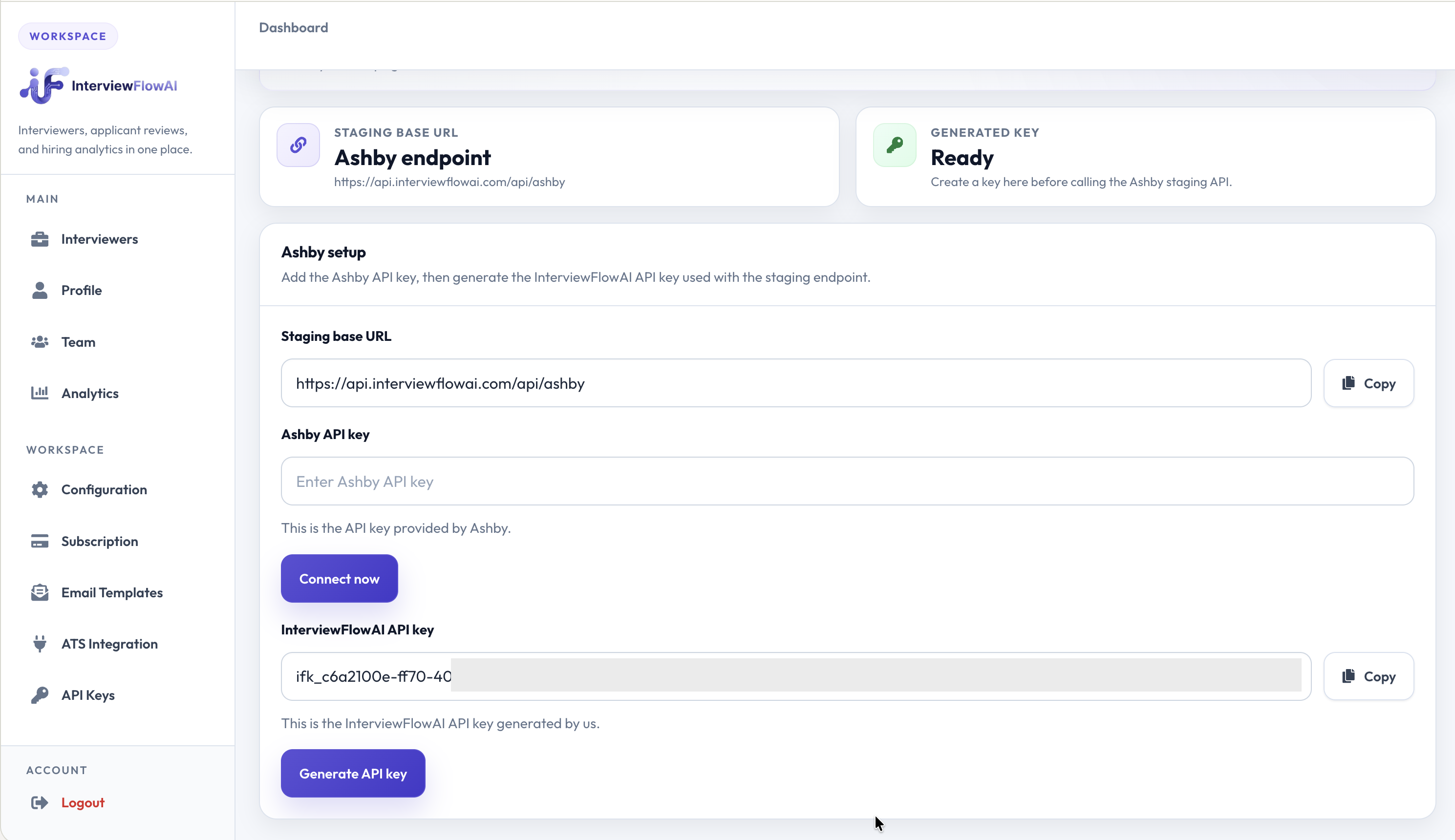
1. Log into the InterviewFlowAI **Dashboard**.
2. Copy the InterviewFlowAI API key and the Staging Base URL. Keep these details handy in another tab for the next steps.
 ### 2. Configure the integration in Ashby
1. Go to **Admin** in Ashby, and navigate to **Integrations**.
### 2. Configure the integration in Ashby
1. Go to **Admin** in Ashby, and navigate to **Integrations**.
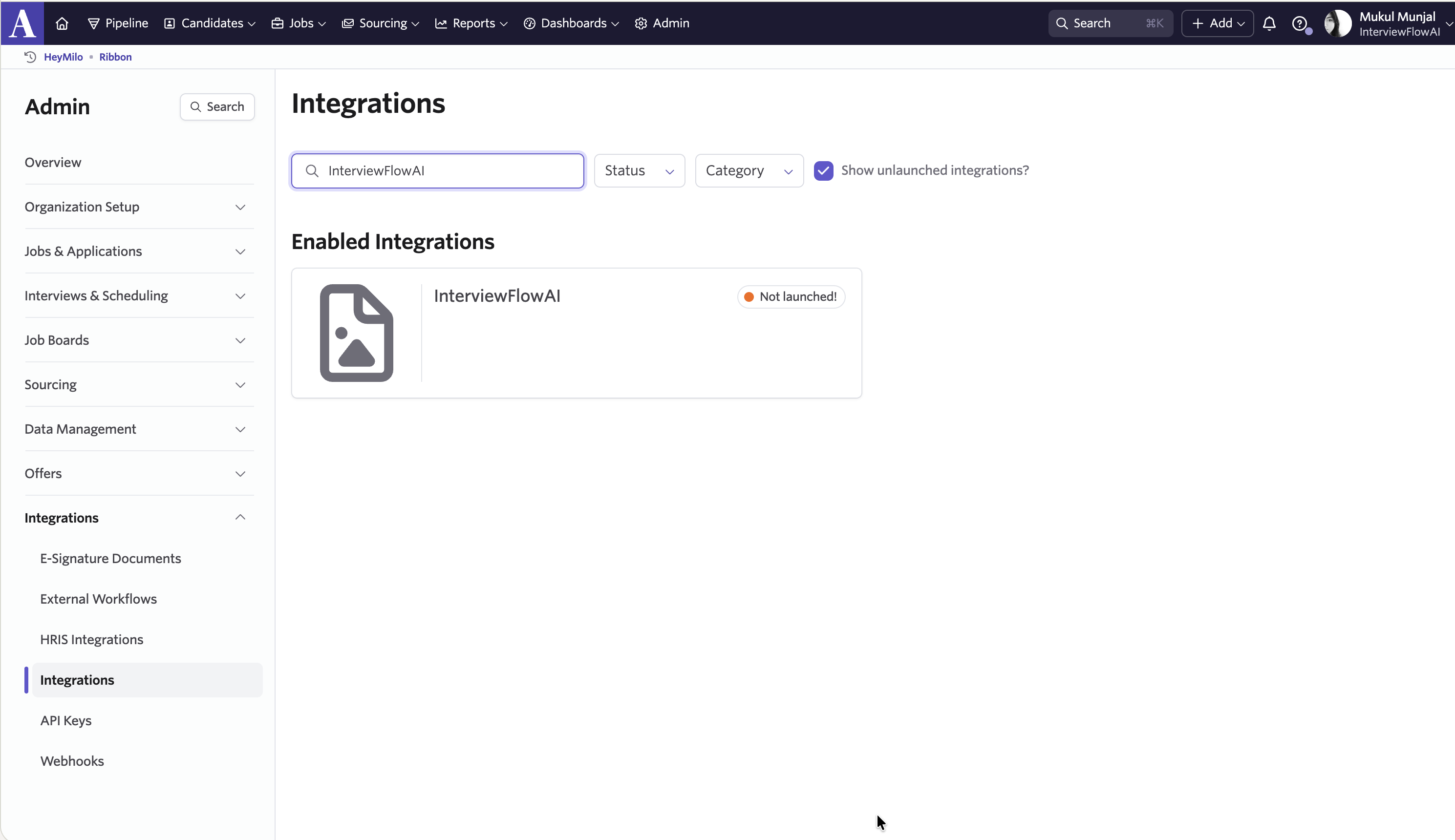 2. Select **InterviewFlowAI** from the list of integrations.
3. Paste the InterviewFlowAI API key and Base URL into the respective fields.
2. Select **InterviewFlowAI** from the list of integrations.
3. Paste the InterviewFlowAI API key and Base URL into the respective fields.
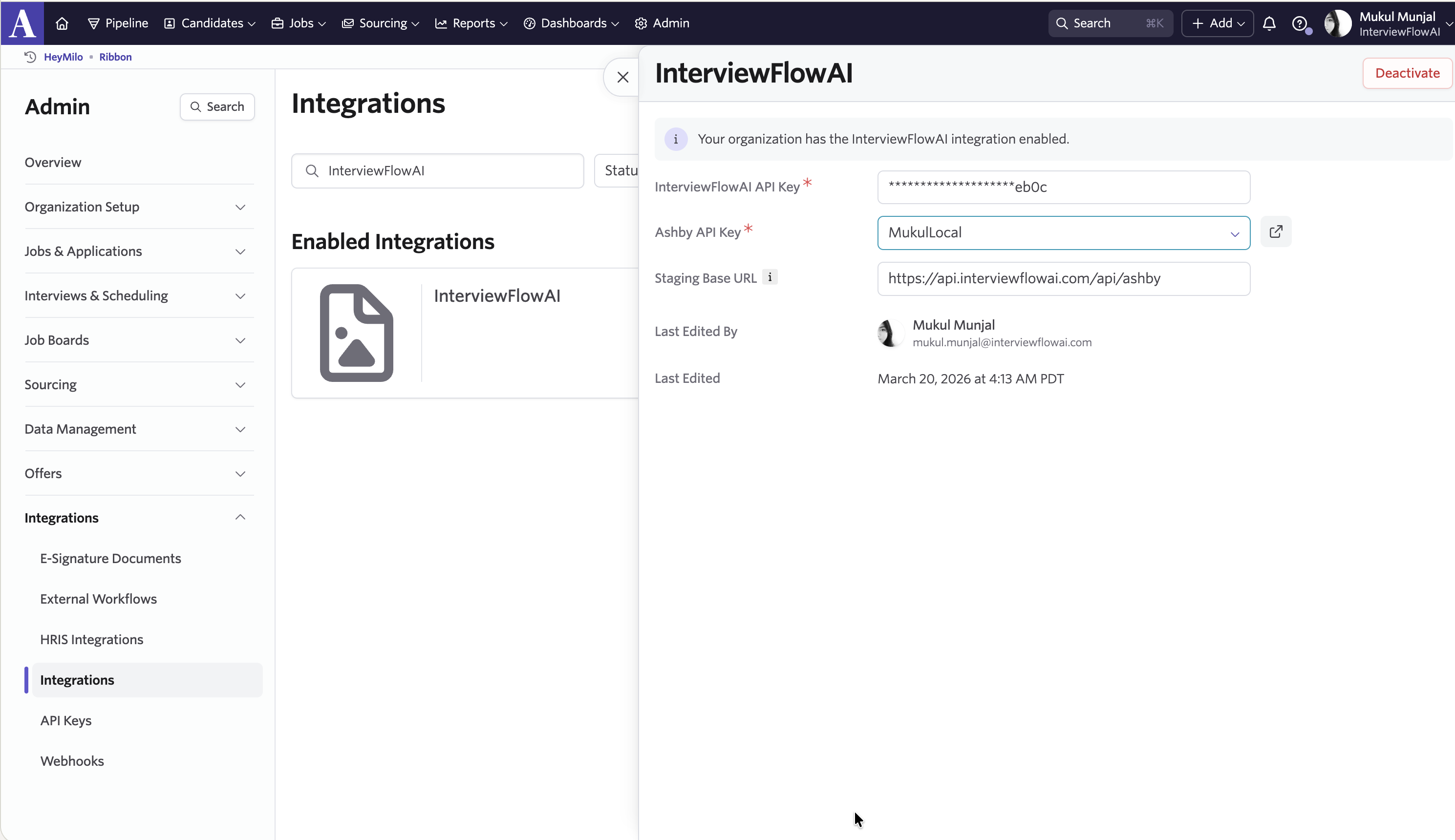 4. Generate the Ashby API key. Ensure the generated key has at least `jobsRead`, `candidatesRead`, and `candidatesWrite` permissions.
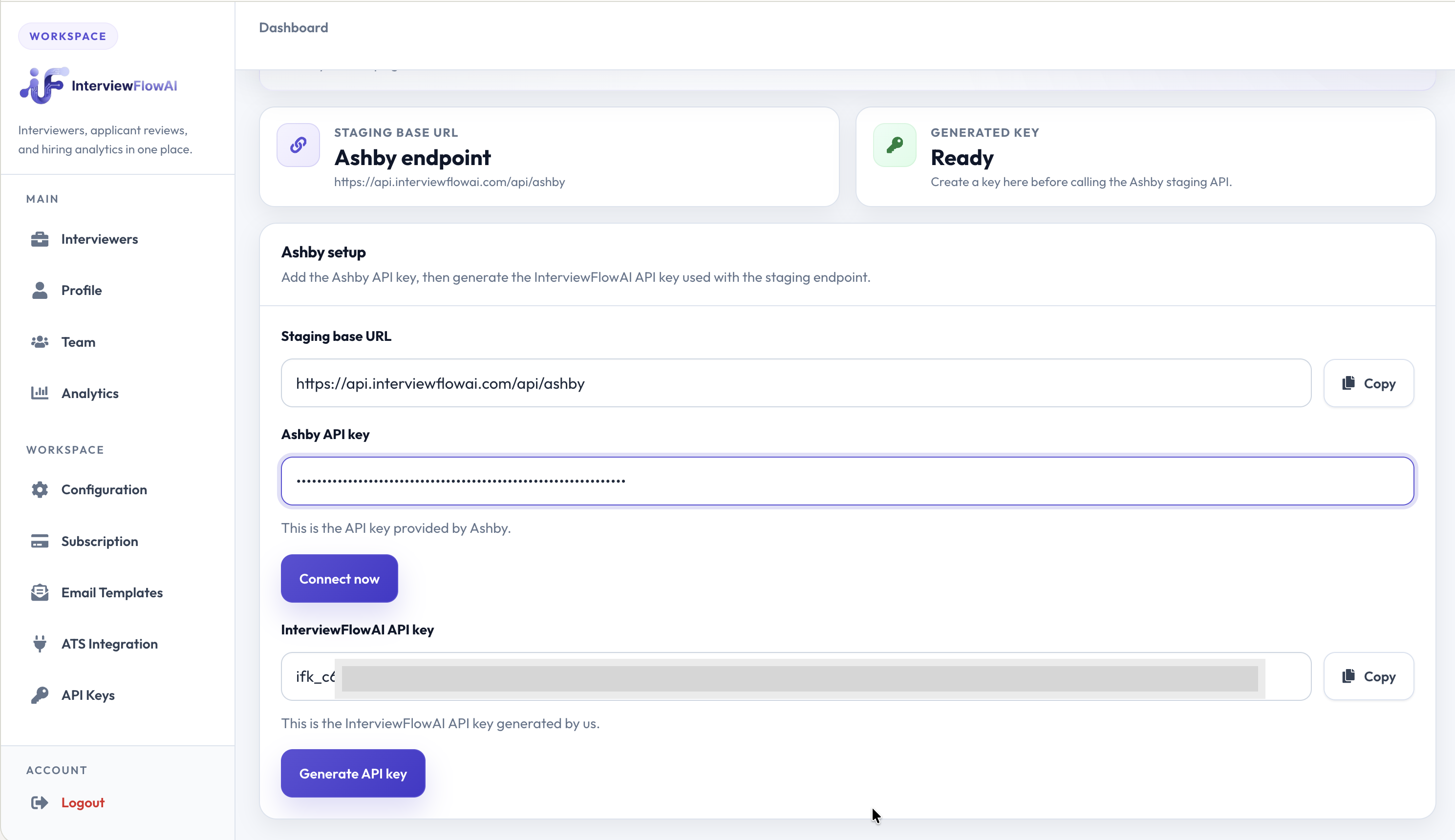
5. Return to the InterviewFlowAI portal, paste the Ashby API key, and click **Connect**.
4. Generate the Ashby API key. Ensure the generated key has at least `jobsRead`, `candidatesRead`, and `candidatesWrite` permissions.
5. Return to the InterviewFlowAI portal, paste the Ashby API key, and click **Connect**.
 ### 3. Add InterviewFlowAI assessments to Ashby Interviewers
1. In Ashby, navigate to the specific Interviewer and click **Interview Plan → Add Activity**.
### 3. Add InterviewFlowAI assessments to Ashby Interviewers
1. In Ashby, navigate to the specific Interviewer and click **Interview Plan → Add Activity**.
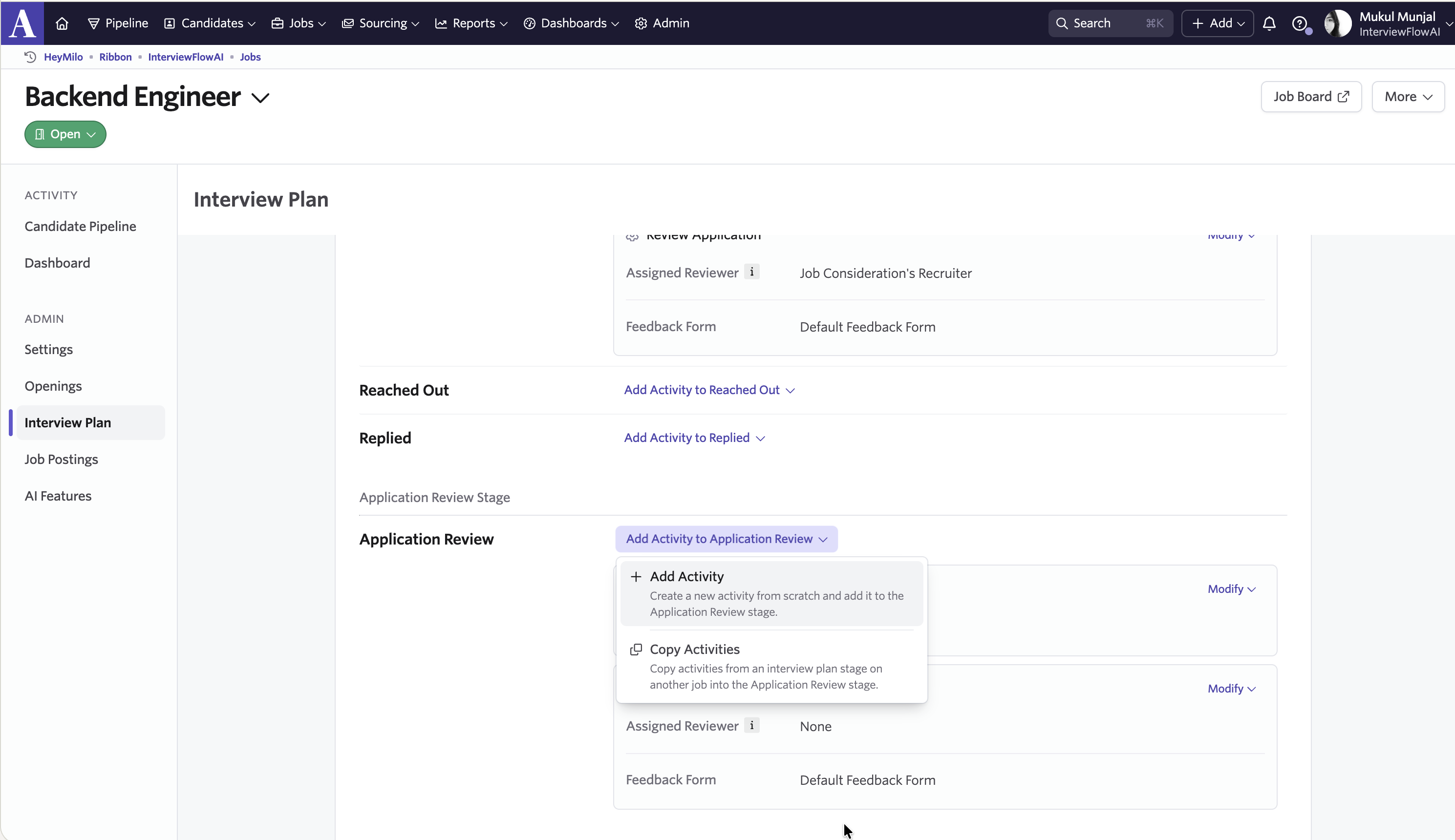 2. Select **InterviewFlowAI** under the Integrations section.
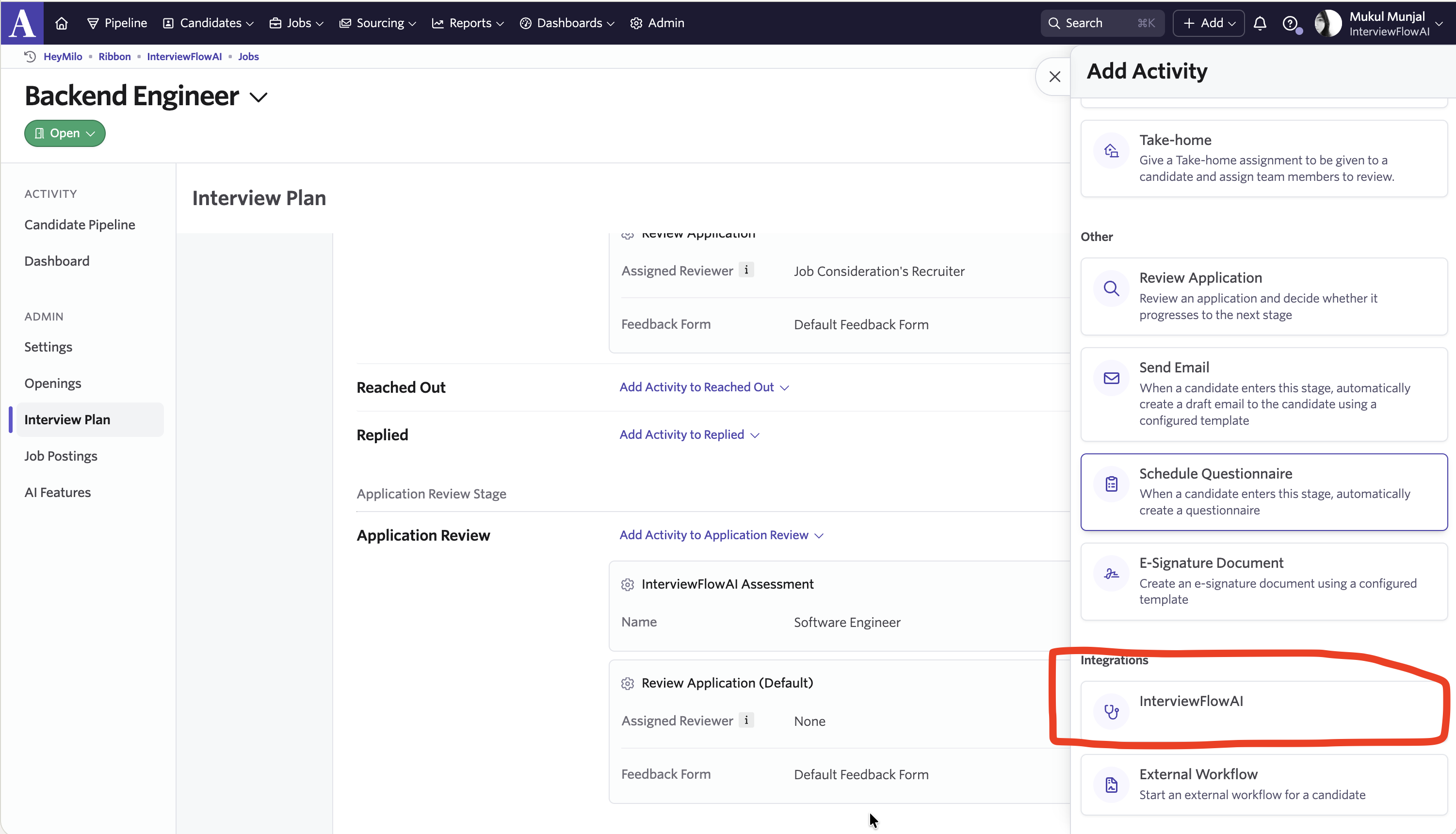 3. Choose the assessment you'd like to add (e.g., Software Engineer), and click **Add**.
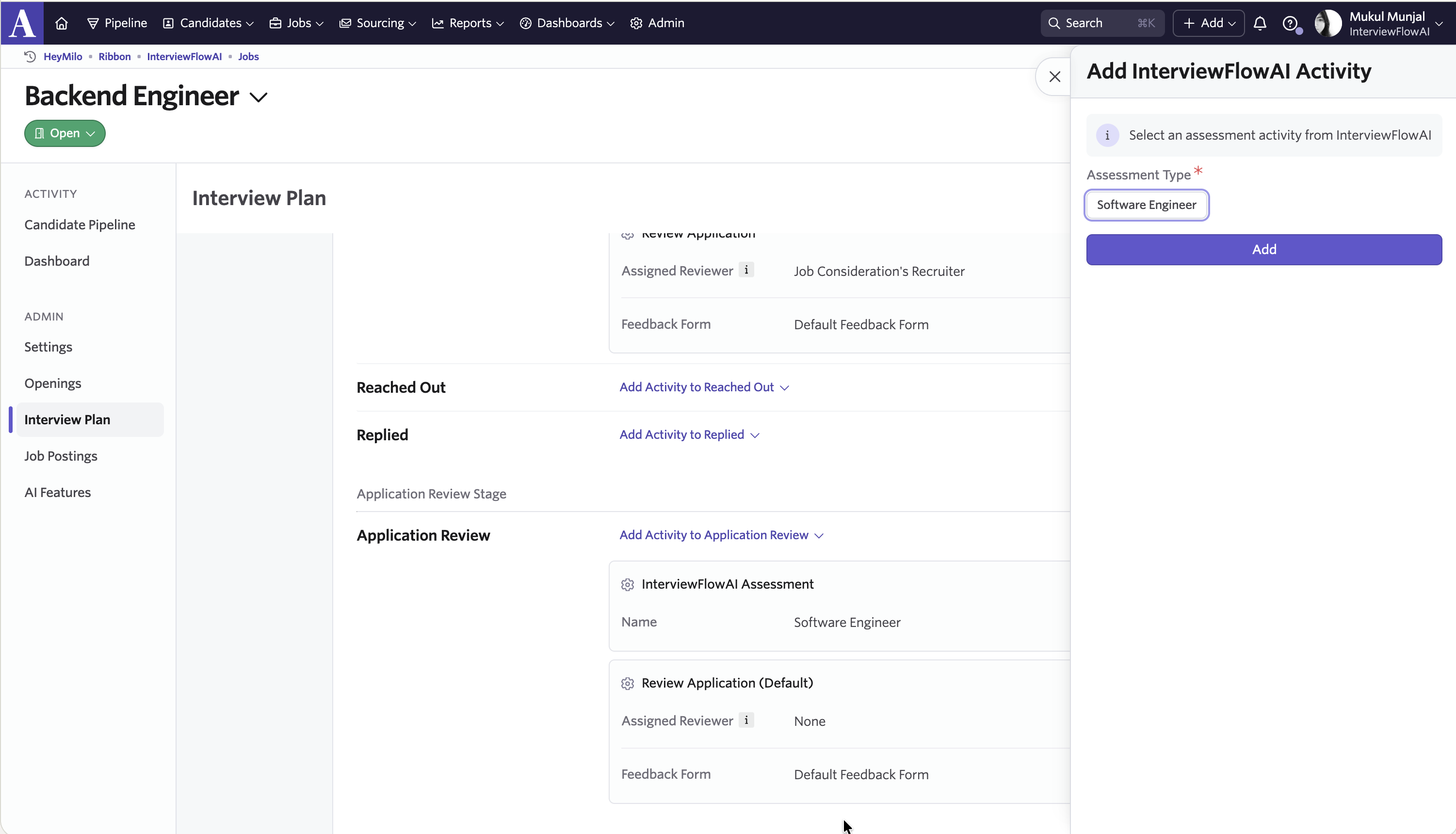 4. To automate the dispatch of the InterviewFlowAI interview, click **Edit** beside the InterviewFlowAI integration.
5. Navigate to the **Automation** tab and select **Automate on Stage Entry**.
4. To automate the dispatch of the InterviewFlowAI interview, click **Edit** beside the InterviewFlowAI integration.
5. Navigate to the **Automation** tab and select **Automate on Stage Entry**.
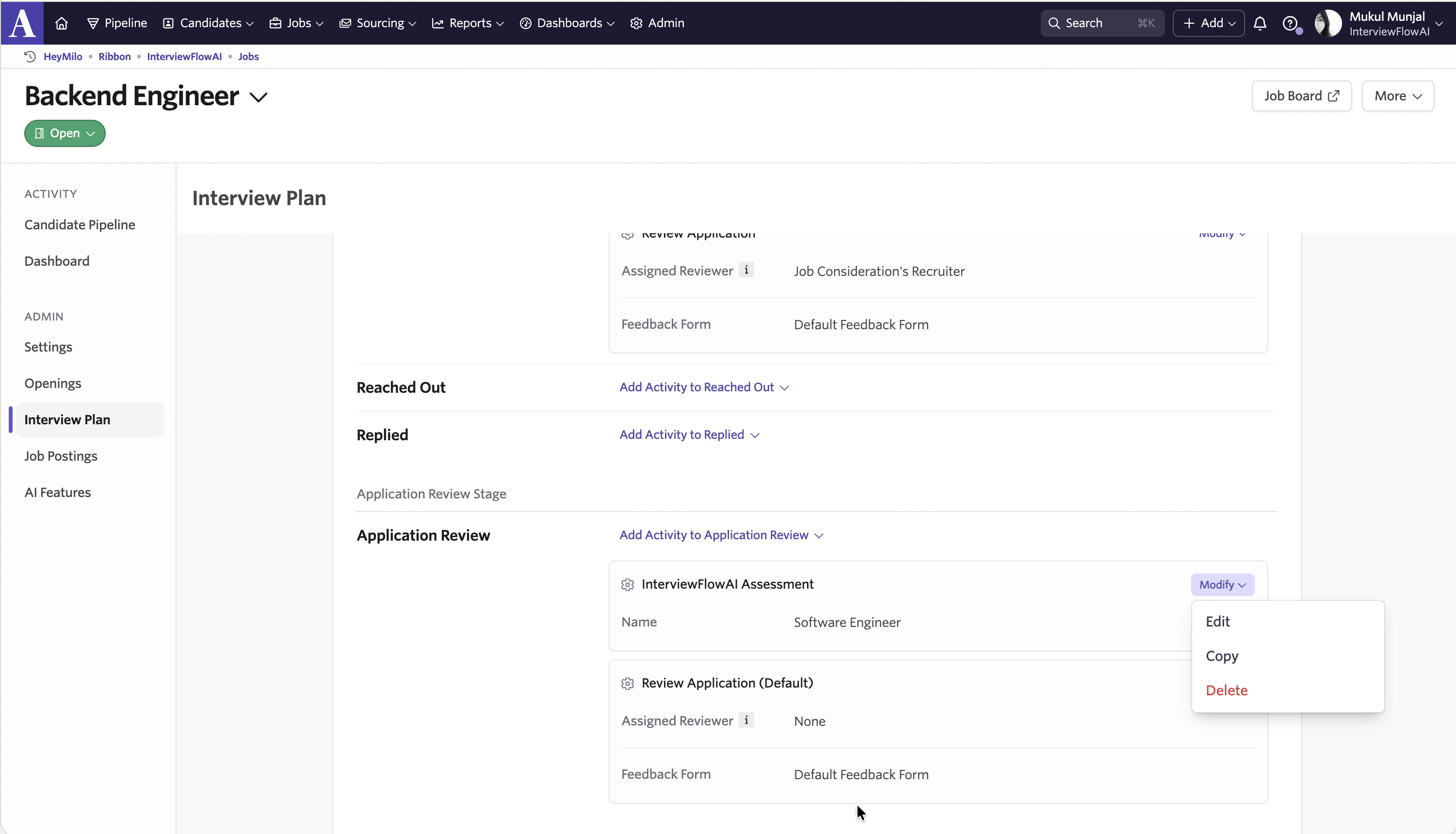
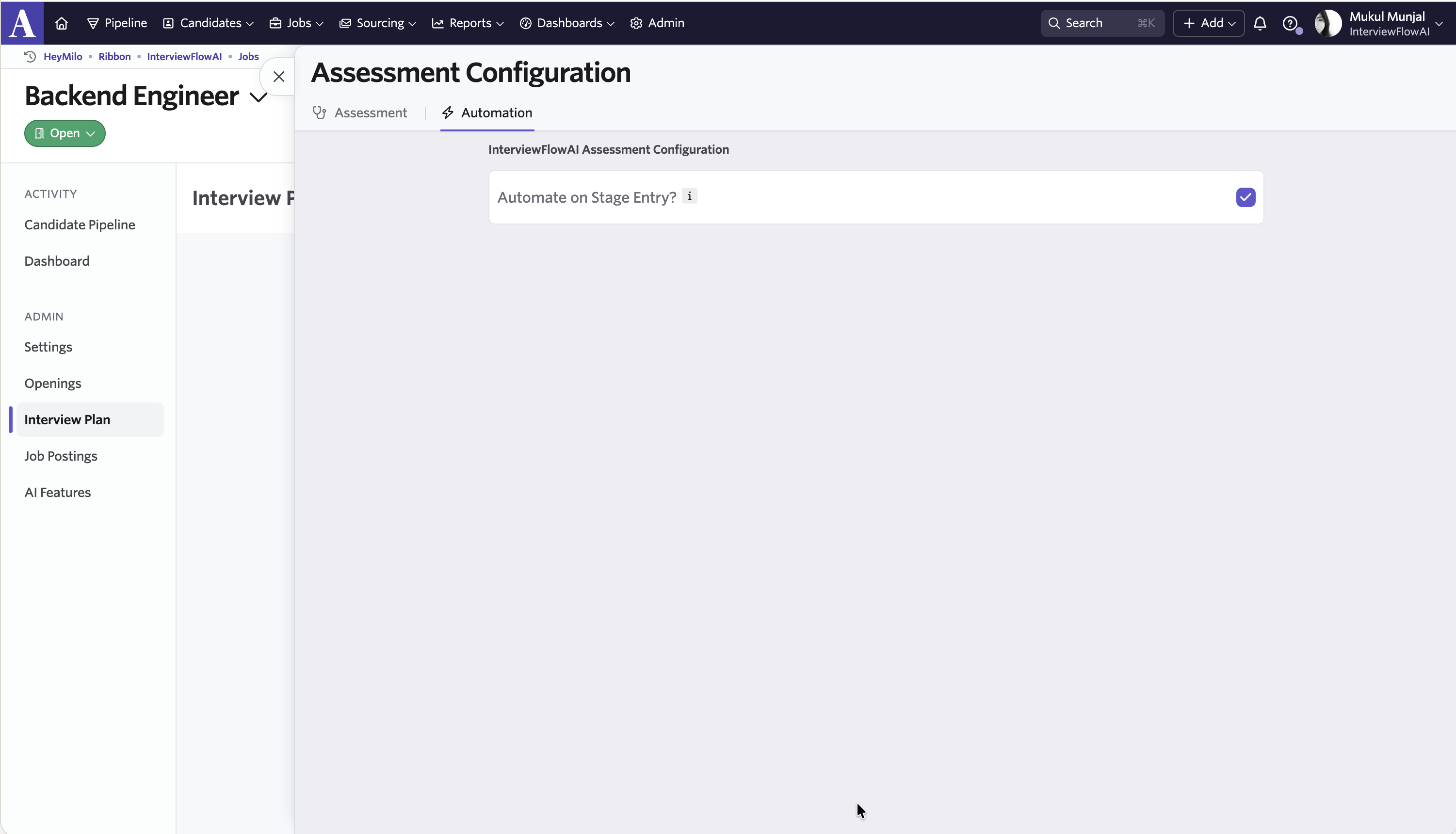 6. Choose **Start Assessment**.
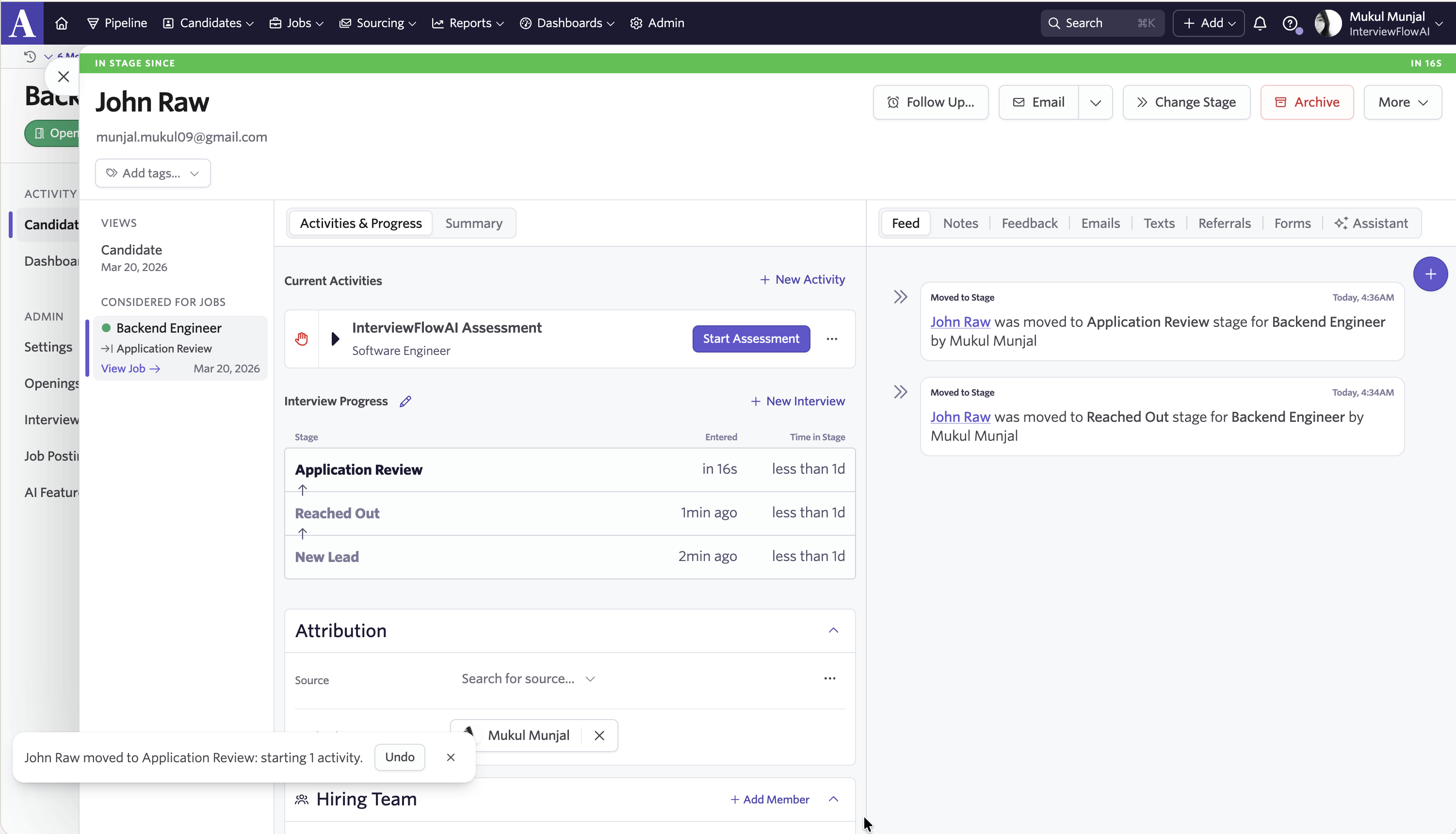 Once initialized successfully, you'll see the assessment link sent to the candidate displayed in the Ashby interface.
.png) ## How do I review screening results in Ashby?
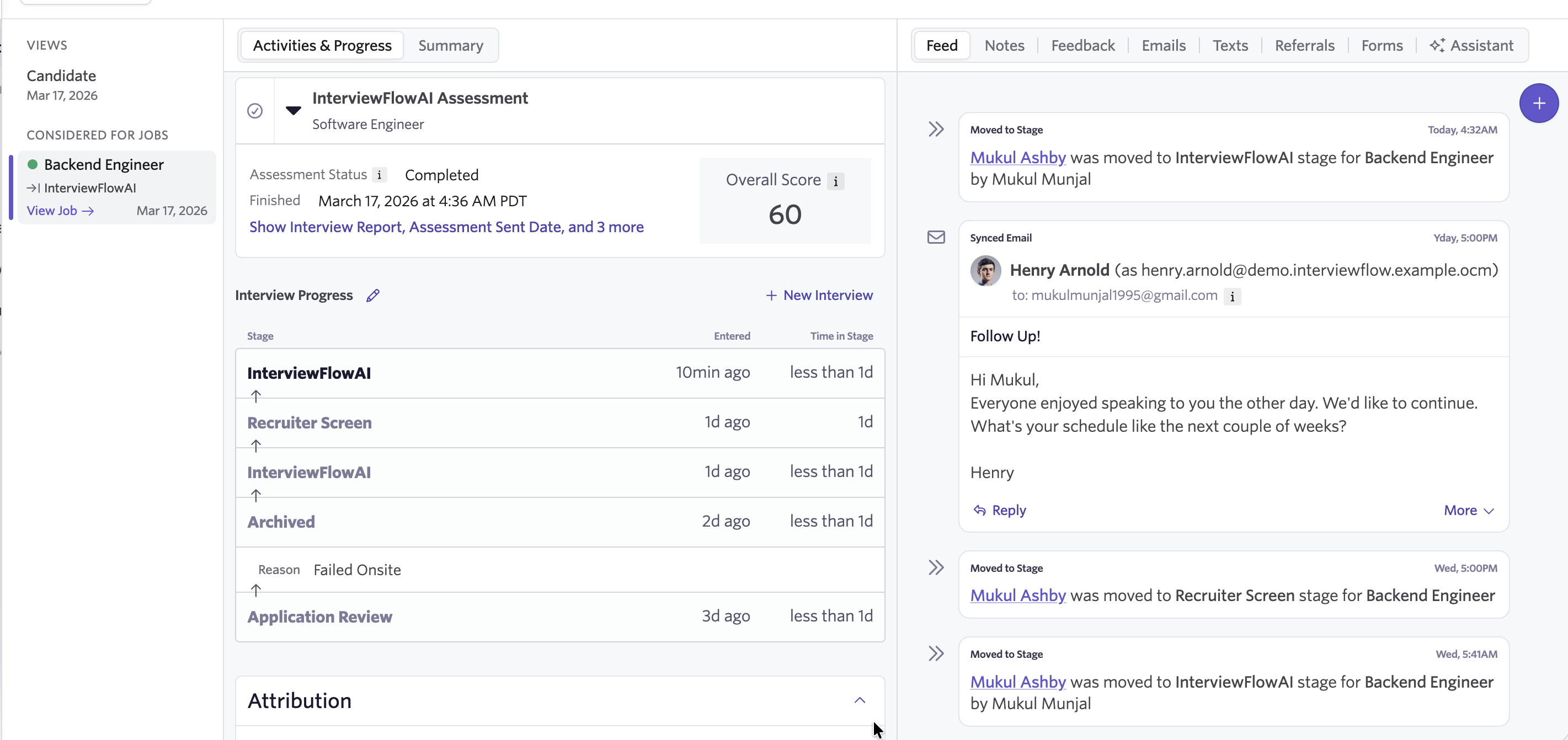
1. After the candidate completes their interview, the results will automatically be available on their candidate profile in Ashby.
2. Assessments will be marked as completed. The score will be updated along with a detailed report and interview media link(s) to audio/video screenings.
## How do I review screening results in Ashby?
1. After the candidate completes their interview, the results will automatically be available on their candidate profile in Ashby.
2. Assessments will be marked as completed. The score will be updated along with a detailed report and interview media link(s) to audio/video screenings.
 Need help? We've got you. Our 24/7 multilingual support team is here for both you and your candidates.
Happy hiring!
Need help? We've got you. Our 24/7 multilingual support team is here for both you and your candidates.
Happy hiring!