

Before you start
You need an active InterviewFlowAI Interviewer and access to manage integrations in Ashby. Ask the person who manages your Ashby account to help with connection permissions.Connect Ashby
- In InterviewFlowAI, open ATS & Integrations → Ashby → Open setup.
- Click Generate API key and copy the key immediately. It is shown in full only once.
- Copy the URL displayed under Staging Base URL. Use the value shown in the setup page.
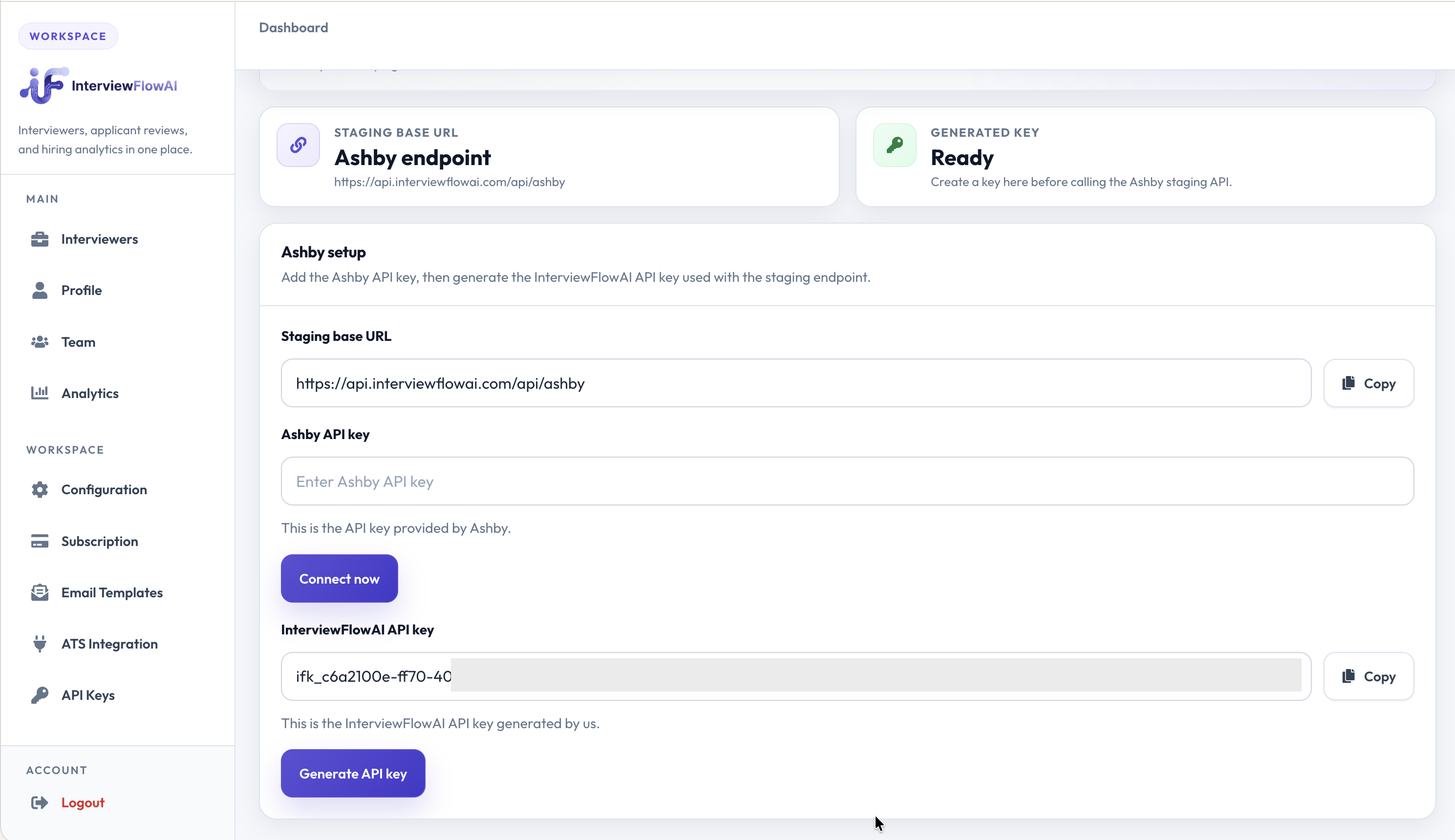
Copy the API key and base URL from InterviewFlowAI.
- In Ashby, open Admin → Integrations → InterviewFlowAI. Paste the InterviewFlowAI key and base URL into the corresponding fields.
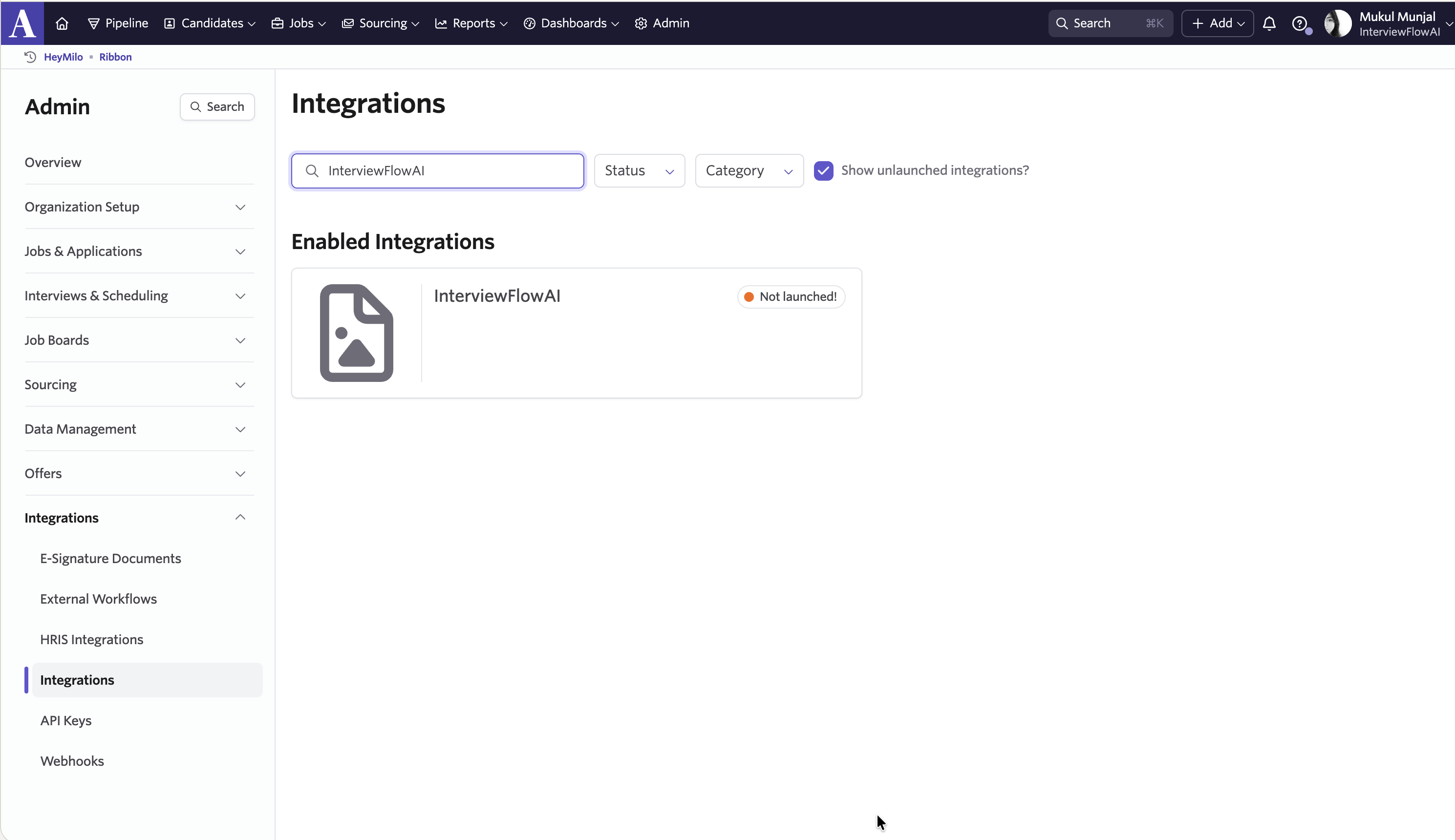
Open Integrations in Ashby.
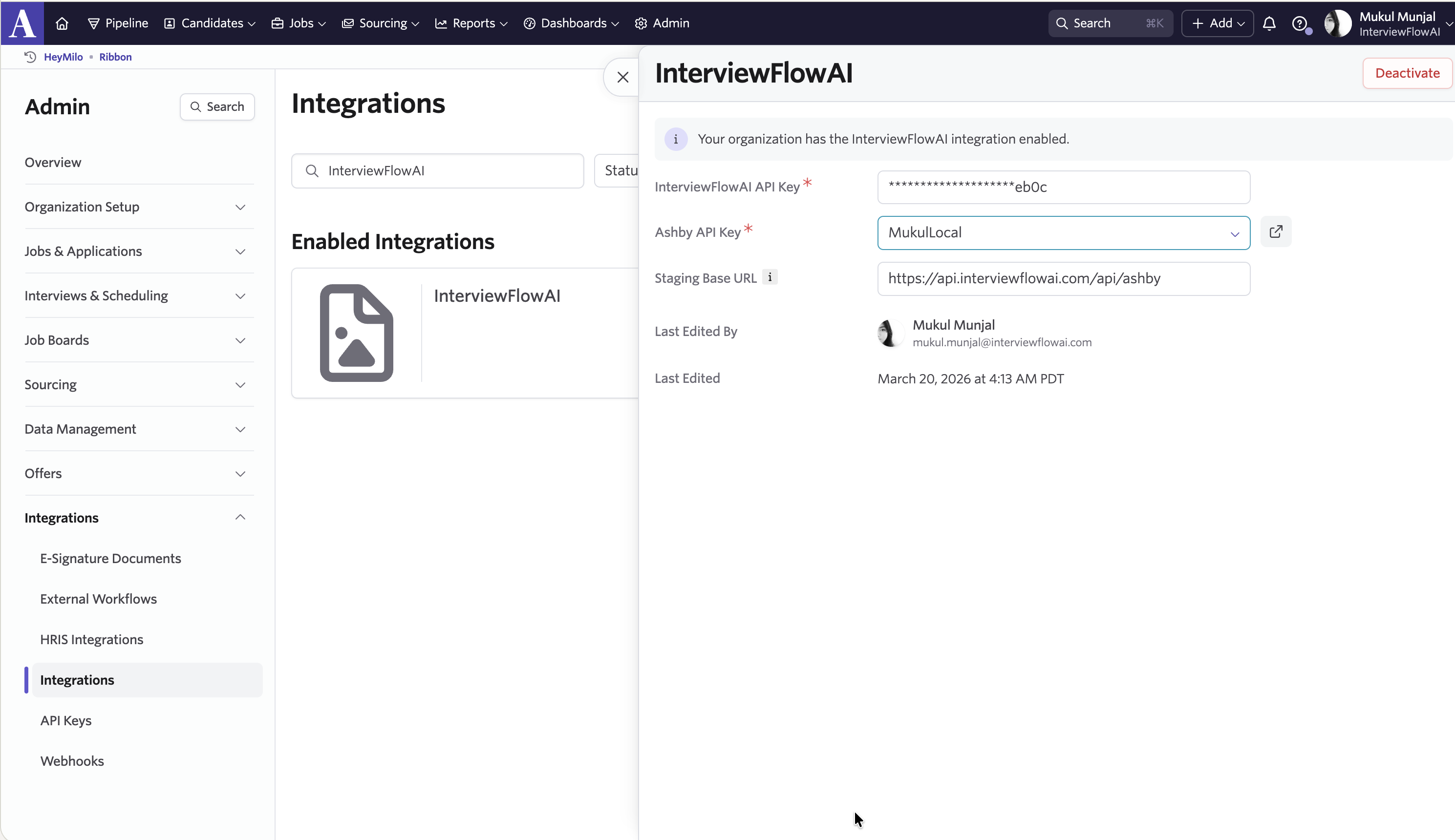
Paste the InterviewFlowAI key and base URL in Ashby.
- Generate an Ashby API key with the permissions below.
- Return to InterviewFlowAI, paste the key into Ashby API key, and click Connect now. If a permission is missing, add the permission identified by the setup page.
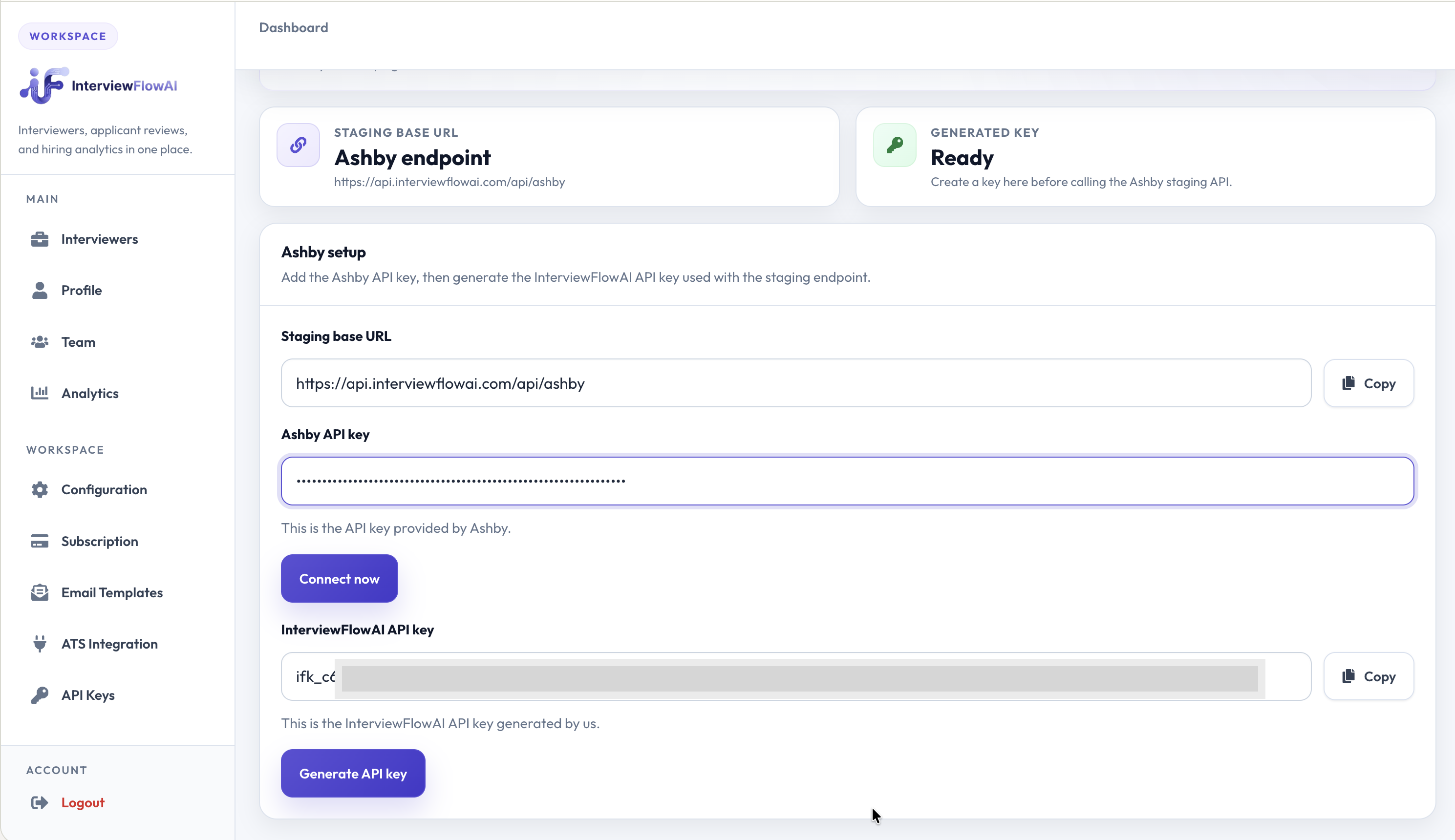
Connect Ashby in InterviewFlowAI.
Ashby API key permissions
Ashby API key permissions
Give this list to the person configuring your Ashby connection:
jobs:readjobs:writecandidates:readcandidates:writeinterviews:readhiringProcessMetadata:readapiKeys:read
Send interviews from a hiring stage
- In Ashby, open the job you want to connect and select Interview Plan → Add Activity.
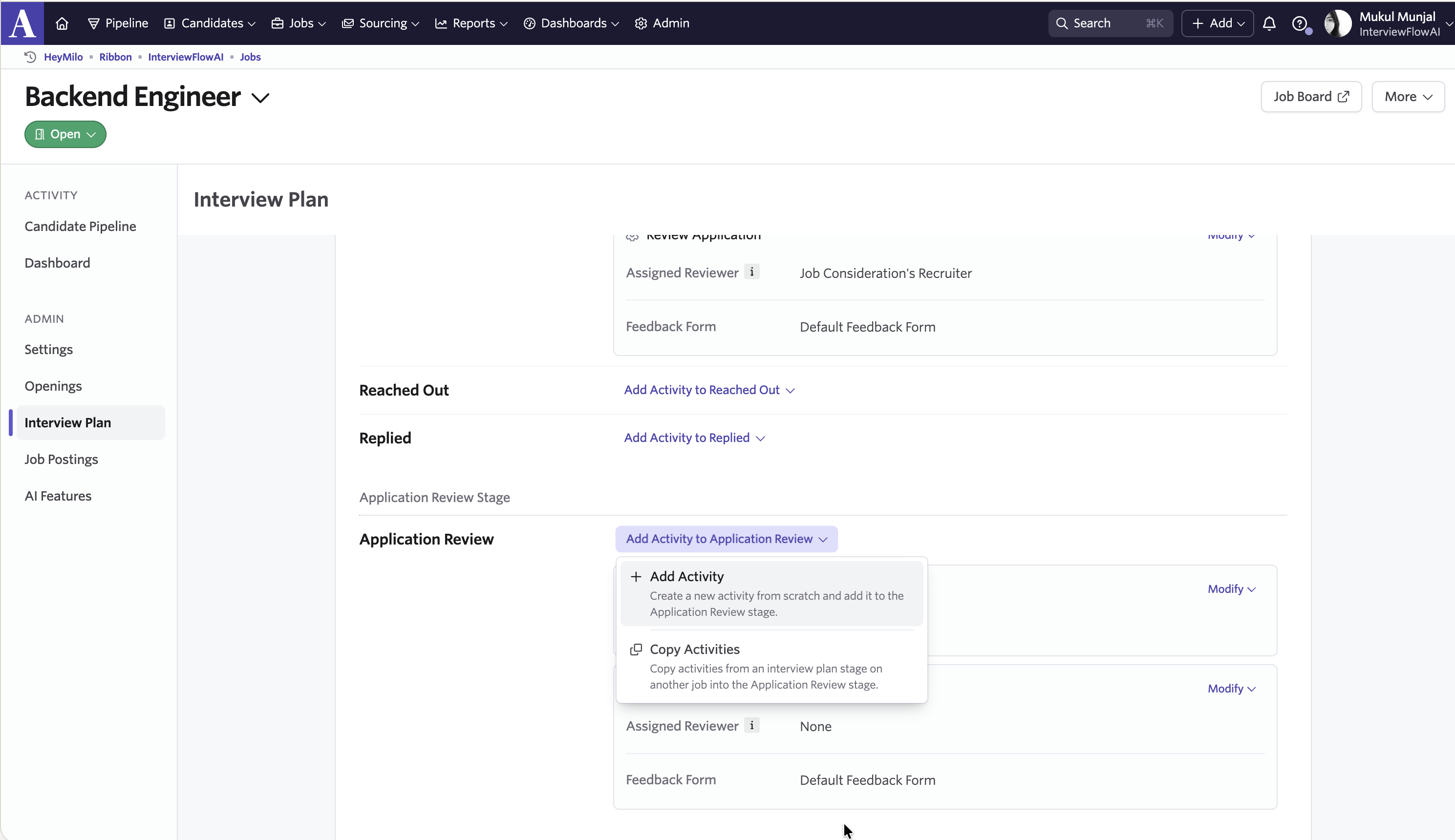
Add an activity to the interview plan.
- Select InterviewFlowAI under Integrations.
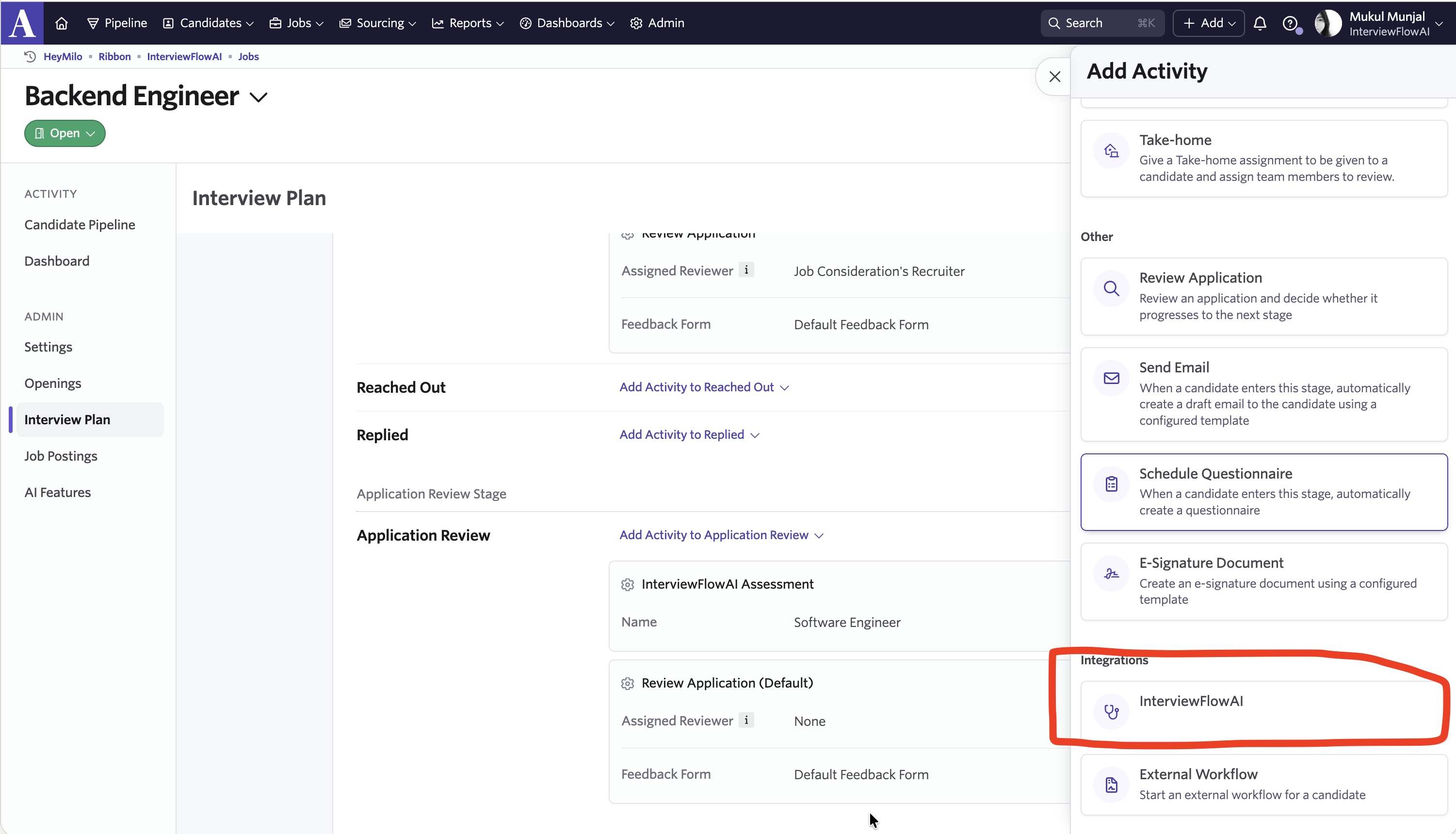
Select InterviewFlowAI.
- Choose the assessment that corresponds to your InterviewFlowAI Interviewer and click Add.
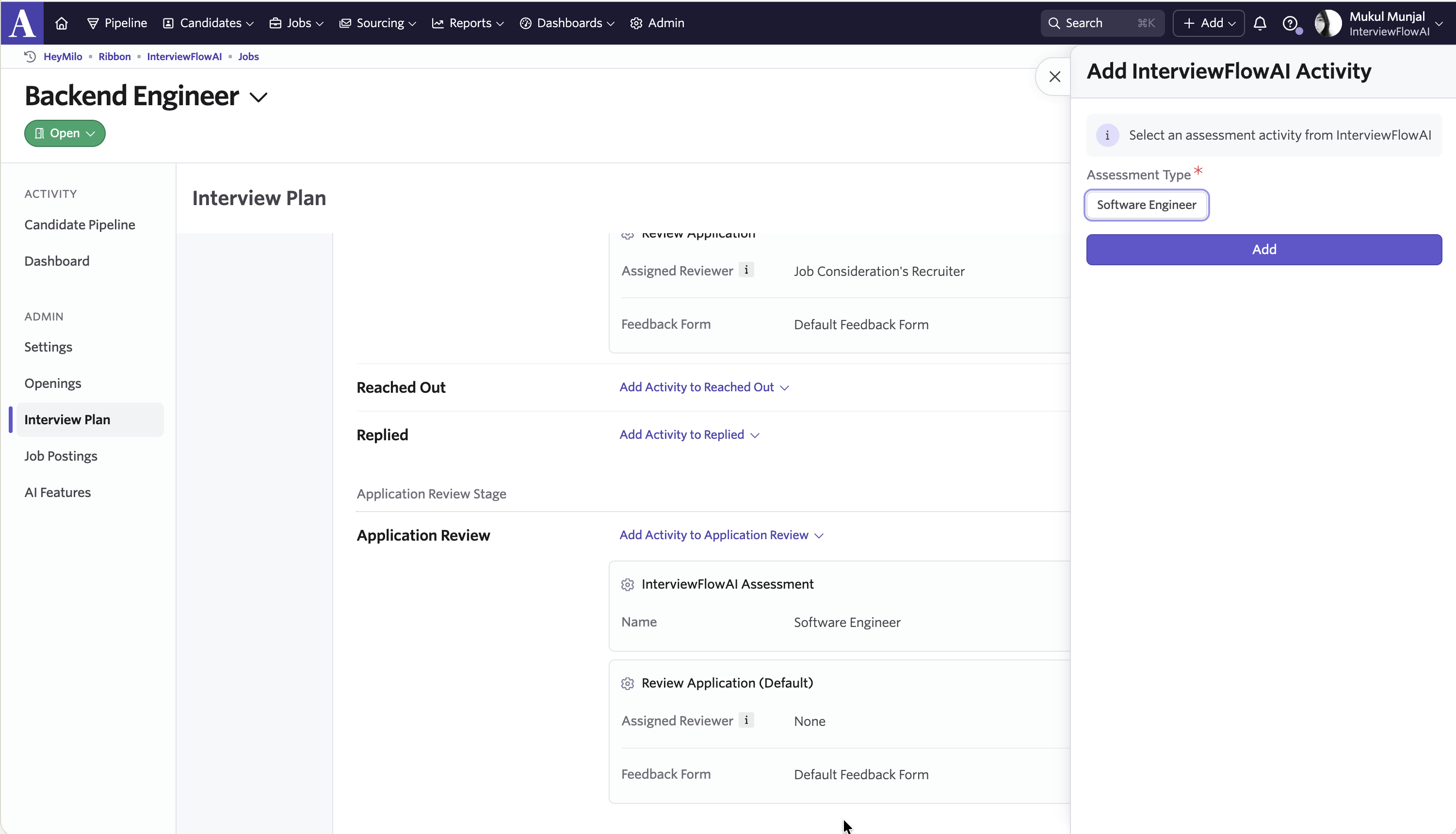
Choose the assessment.
- Click Edit beside the activity and open Automation.
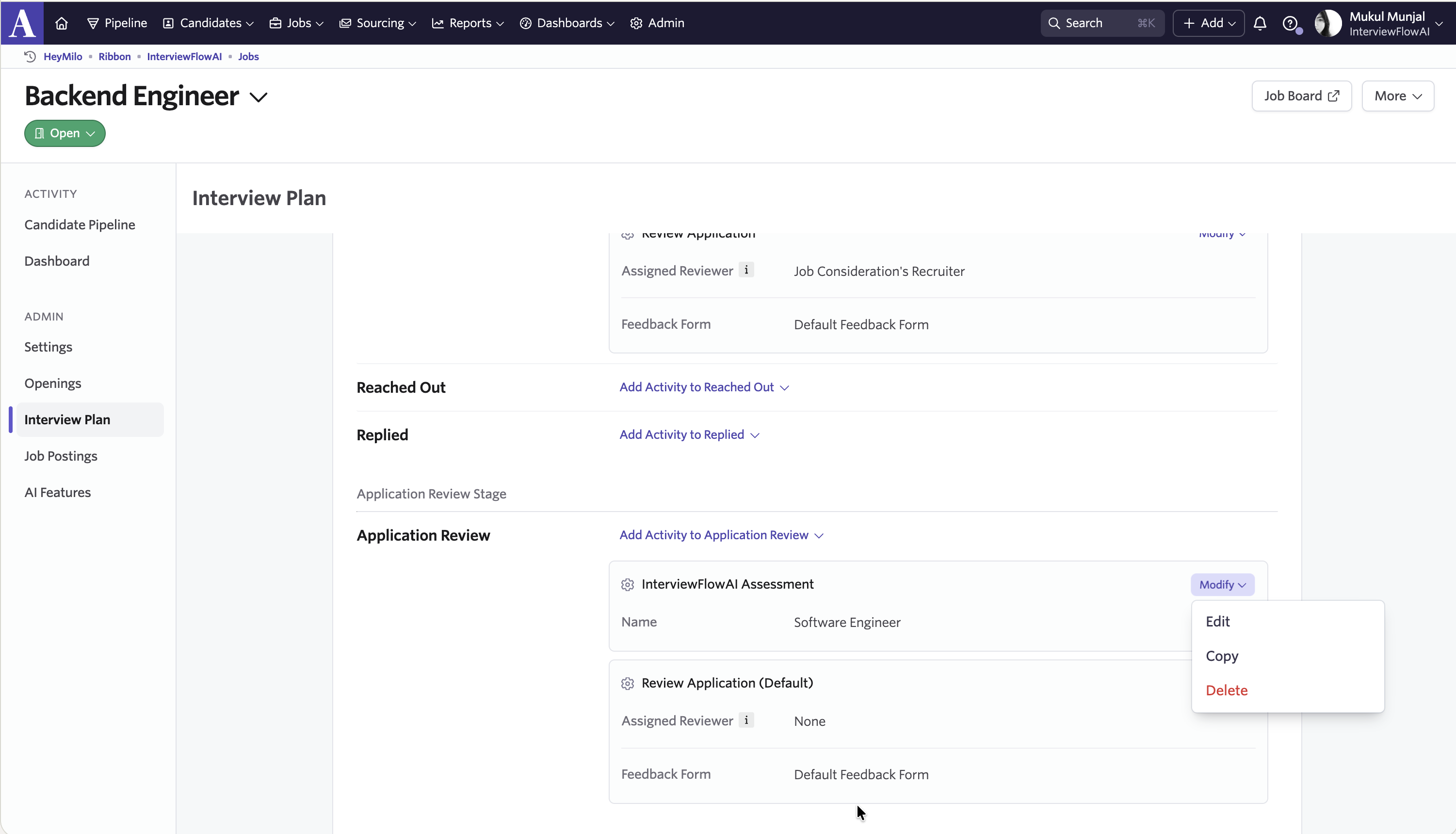
Edit the InterviewFlowAI activity.
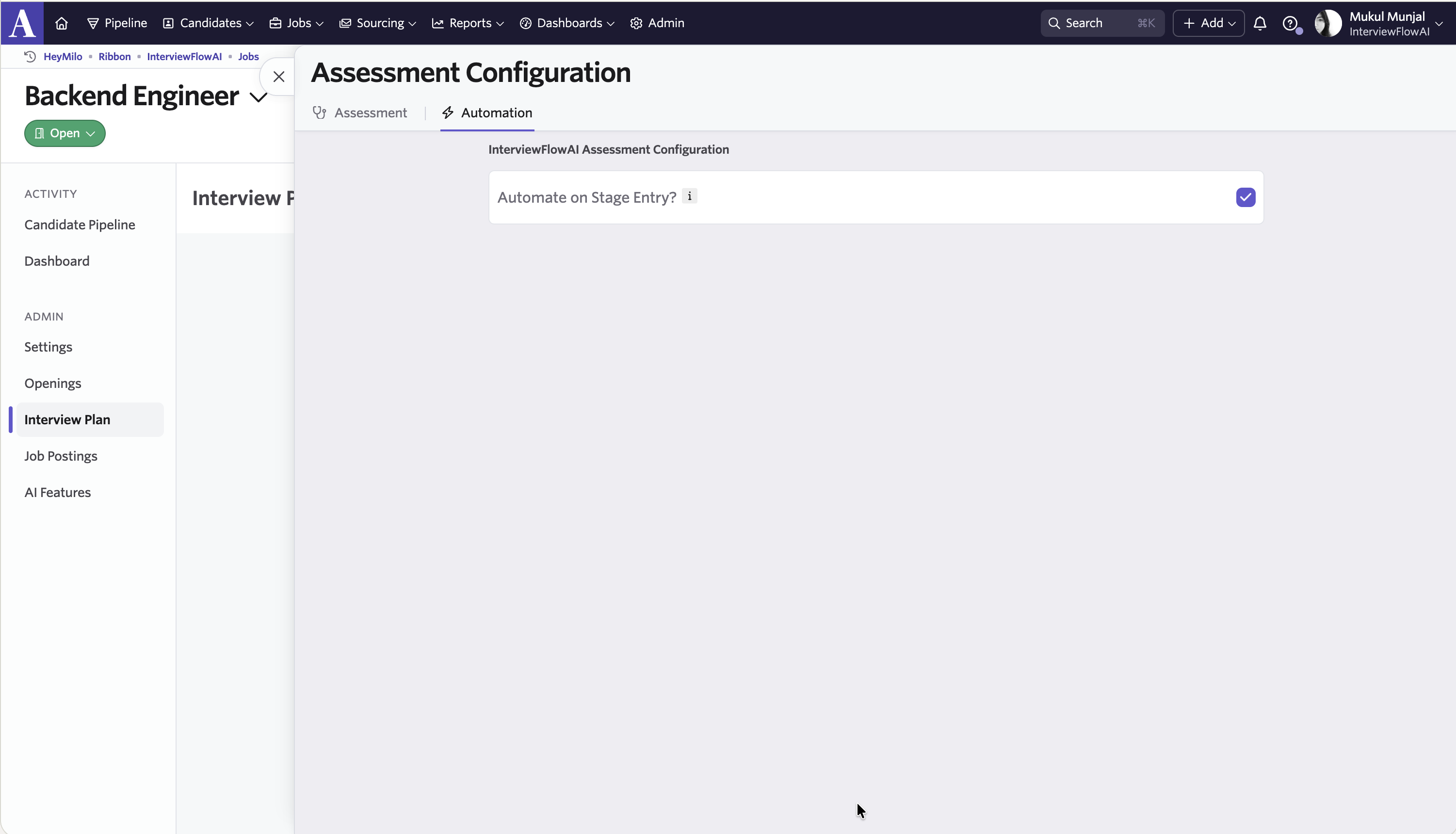
Open the Automation settings.
- Select Automate on Stage Entry → Start Assessment.
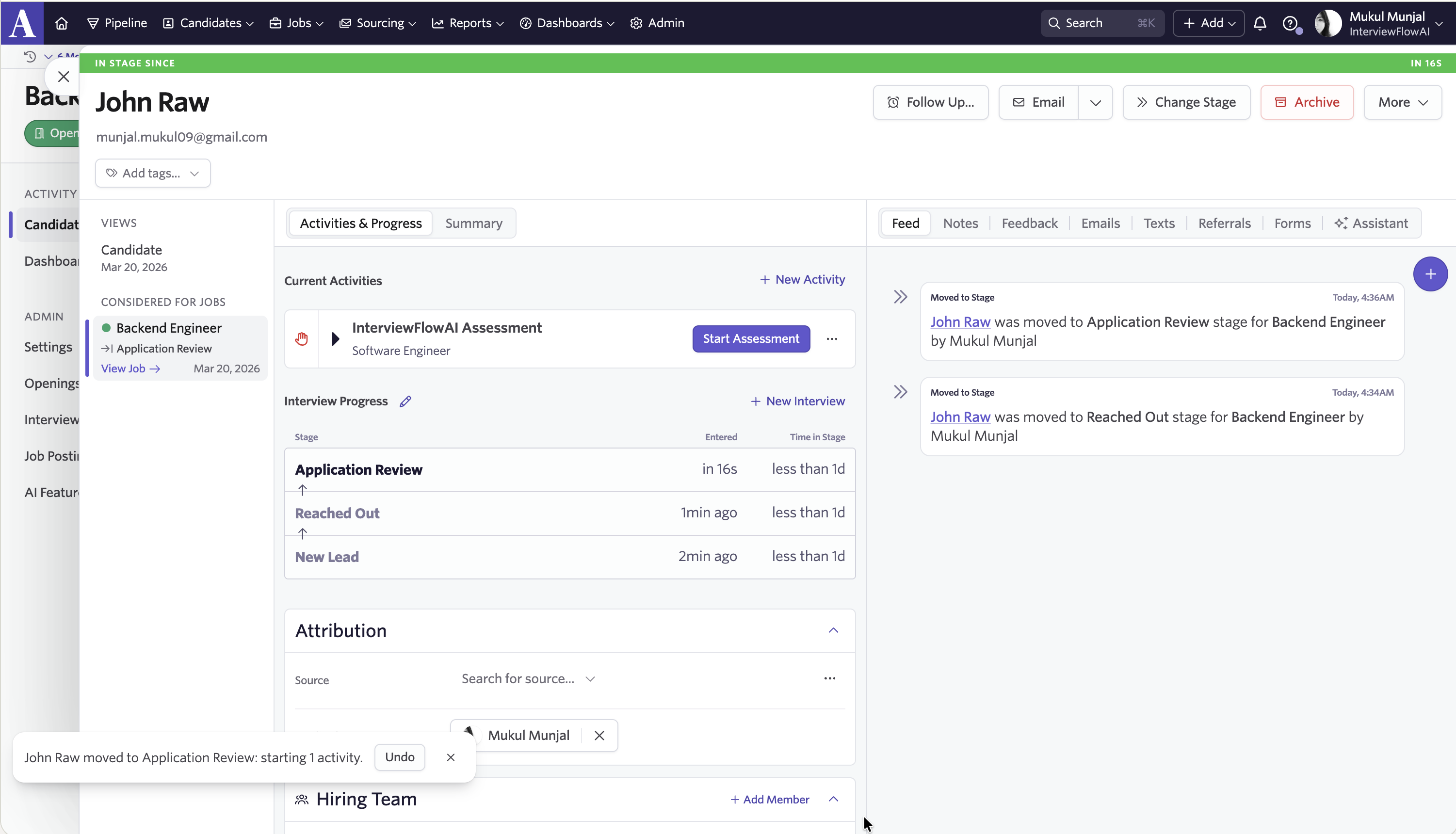
Start the assessment on stage entry.
.png)
The assessment link appears on the Candidate profile.
Review results
After the Candidate completes the interview and the report is ready, open their profile in Ashby. The assessment shows a completed status, score, and links to the detailed report and available interview recordings.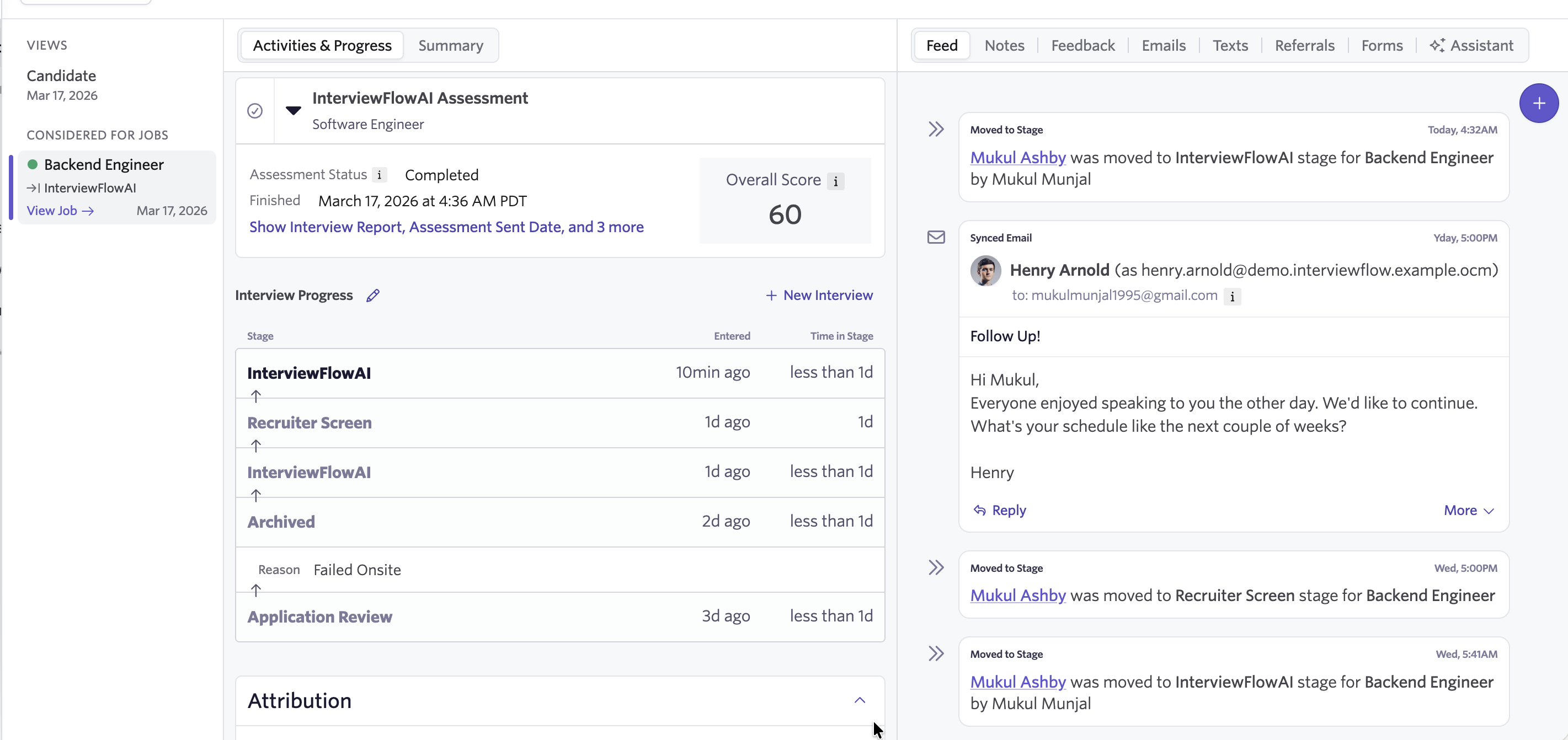
Review results on the Candidate profile in Ashby.