

Open the builder
- Click Assessments in the Main section of the sidebar.
- Click Create assessment.
Step 1: Details
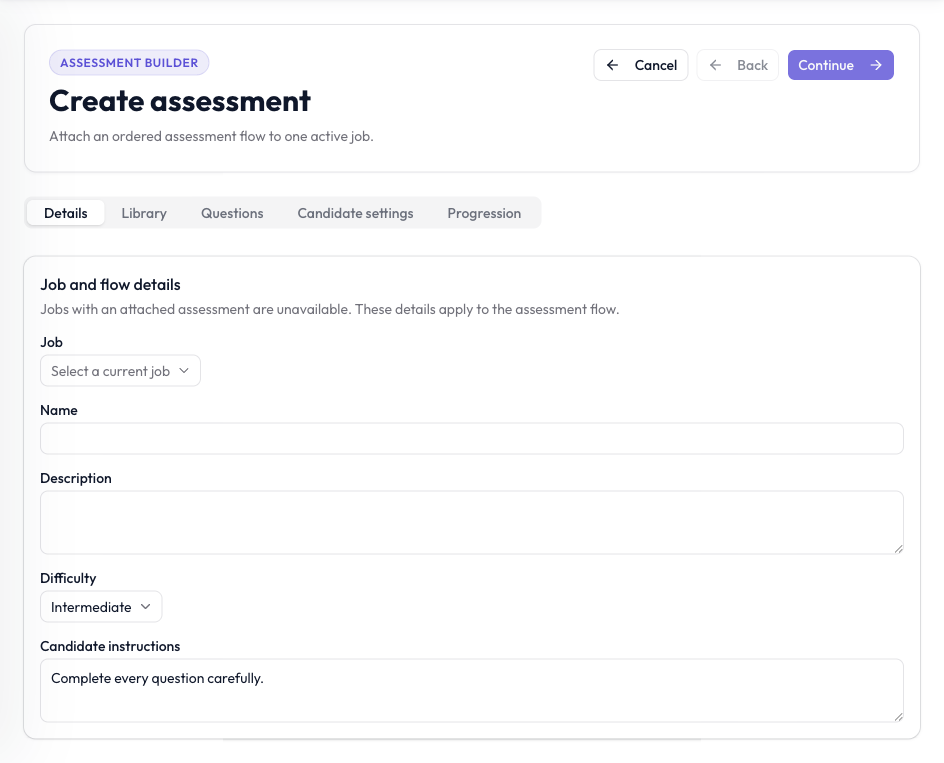
Choose an Interviewer and enter the assessment flow details.
Click Continue.
Step 2: Library
Pick ready-made assessments from the library, or build your own.- Search by role, skill, or assessment, and filter by level.
- Click Preview on a template to see its questions, marks, and estimated time.
- Check up to five templates. The counter shows how many you have selected.
- Click Start from scratch to skip the library and write your own questions.
Step 3: Questions
The left panel lists the assessments in your flow. Drag them or use the arrows to change the order Candidates take them in. Click Add assessment to add a blank one, up to five in total. Select an assessment to set it up:- Assessment name: required for every assessment.
- Category: choose from the list. You can search it.
- Skills: a comma-separated list, such as “JavaScript, APIs”.
- Description: what this assessment evaluates.
Add a question
Click Add question. In the question editor, fill in:- Response type: the kind of question (see the table below).
- Question prompt: the question the Candidate sees. Required.
- Answer setup: the correct answer, for auto-scored types.
- Marks: how much the question is worth, from 0.5 to 100. The default is 1.
- Difficulty: Beginner, Intermediate, or Advanced.
- Time limit: how long the Candidate has to answer. The default is 60 seconds.
- Answer explanation: why the answer is correct. Optional.
- Skills and Tags: optional labels to help you organize questions.
- Required question: on by default.
- Shuffle options for candidates: for single select and multiple select questions.
Question types
Short answer and long answer questions are not scored and don’t count toward pass or fail. Use them to collect written responses that you read yourself.
Candidate experience
Open the Candidate experience tab to control how each assessment behaves:Step 4: Candidate settings
These settings apply to the whole flow. Allowed languages: choose which languages Candidates can take the assessment in. Candidates pick one language for the whole flow. English is selected by default, and at least one language must stay selected. You can choose from English, Arabic, Chinese, Dutch, French, German, Hindi, Indonesian, Italian, Japanese, Korean, Malay, Portuguese, Spanish, Ukrainian, and Vietnamese.Translating questions from their original language works only in Google Chrome.
Face and gaze detection turns on Require camera. Background noise detection turns on Require microphone.
Step 5: Progression
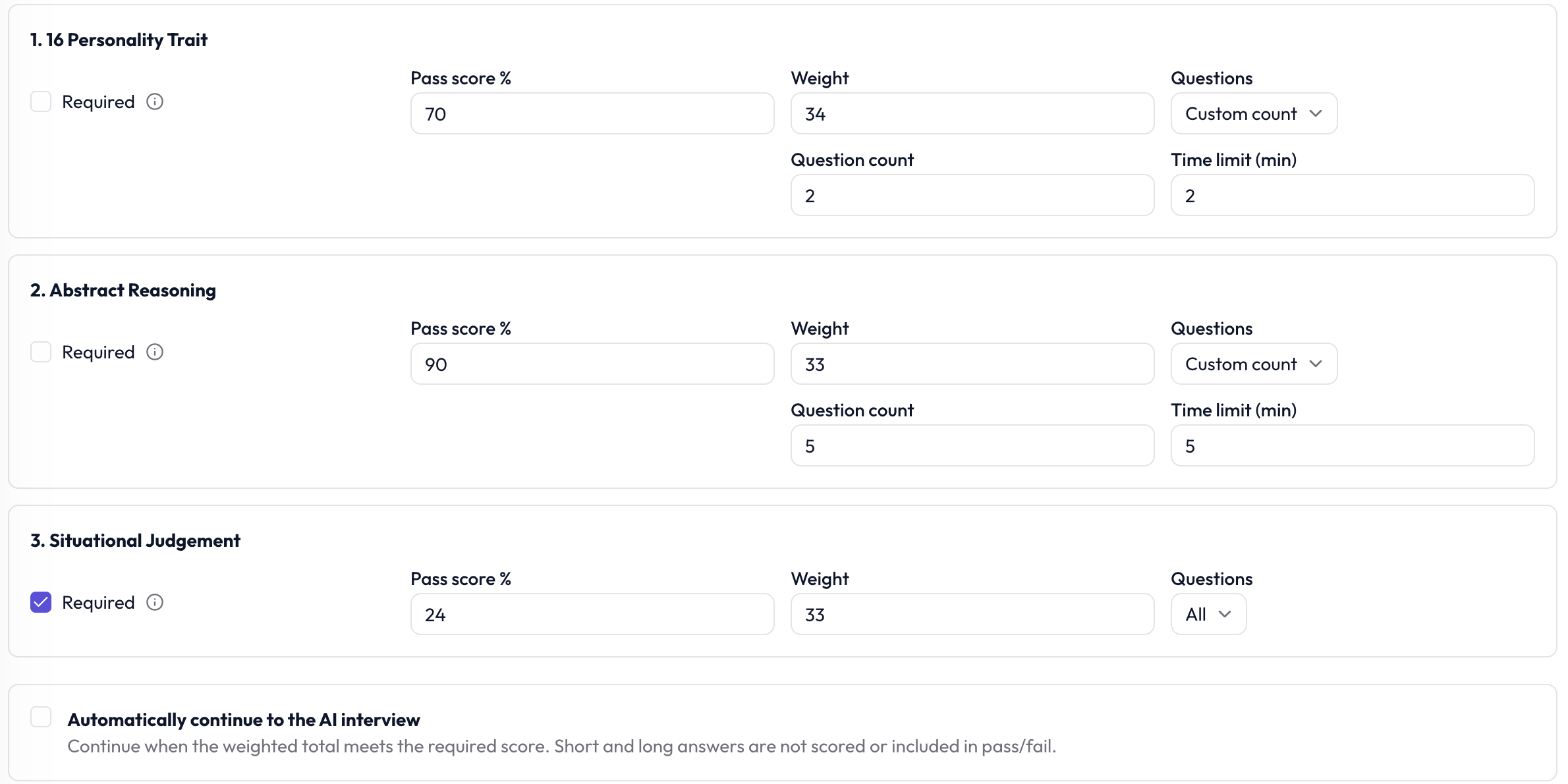
Set pass scores, weights, and whether Candidates continue to the AI interview automatically.
- Inactivity timeout (minutes): an in-progress assessment is submitted automatically after this long without activity. The minimum and default is 15 minutes.
- Assessment starts and Assessment ends: the window in which Candidates can take the assessment, in your local time zone. By default, the window starts now and ends in seven days. The end must be after the start.
- Required: the Candidate must meet this assessment’s pass score and the overall required score to move on automatically.
- Pass score %: from 0 to 100. The default is 70.
- Weight: how much this assessment counts toward the total. Weights are split evenly when you add assessments, and they must add up to 100.
- Questions: All, or Custom count to ask a set number of questions. With Custom count, enter a Question count between 1 and the number of questions in the assessment, and a Time limit (min) from 1 to 480.
Edit an assessment flow
- Click Assessments in the sidebar.
- Find the flow. You can search by flow or Interviewer name, and sort by Newest first or Name A–Z.
- Click Open flow.
- Make your changes in any step.
- Click Update.
Review results
Assessment results appear in the Candidate’s report.- Open the Interviewer and click the Candidate.
- Open the Assessments tab.
- Assessment score: the Candidate’s weighted total, and the required score if automatic progression is on.
- Assigned assessments: how many assessments the Candidate was given.
- Passed: how many they passed.
- Summary: the Final score, Pass threshold, and how many questions were answered.
- Responses: each question with the Candidate’s answer. Auto-scored questions show the marks earned. Short and long answers show “Not scored or included in pass/fail.”
- Integrity: proctoring events such as exiting fullscreen, hiding the tab, or copy and paste attempts, with the time each happened.