

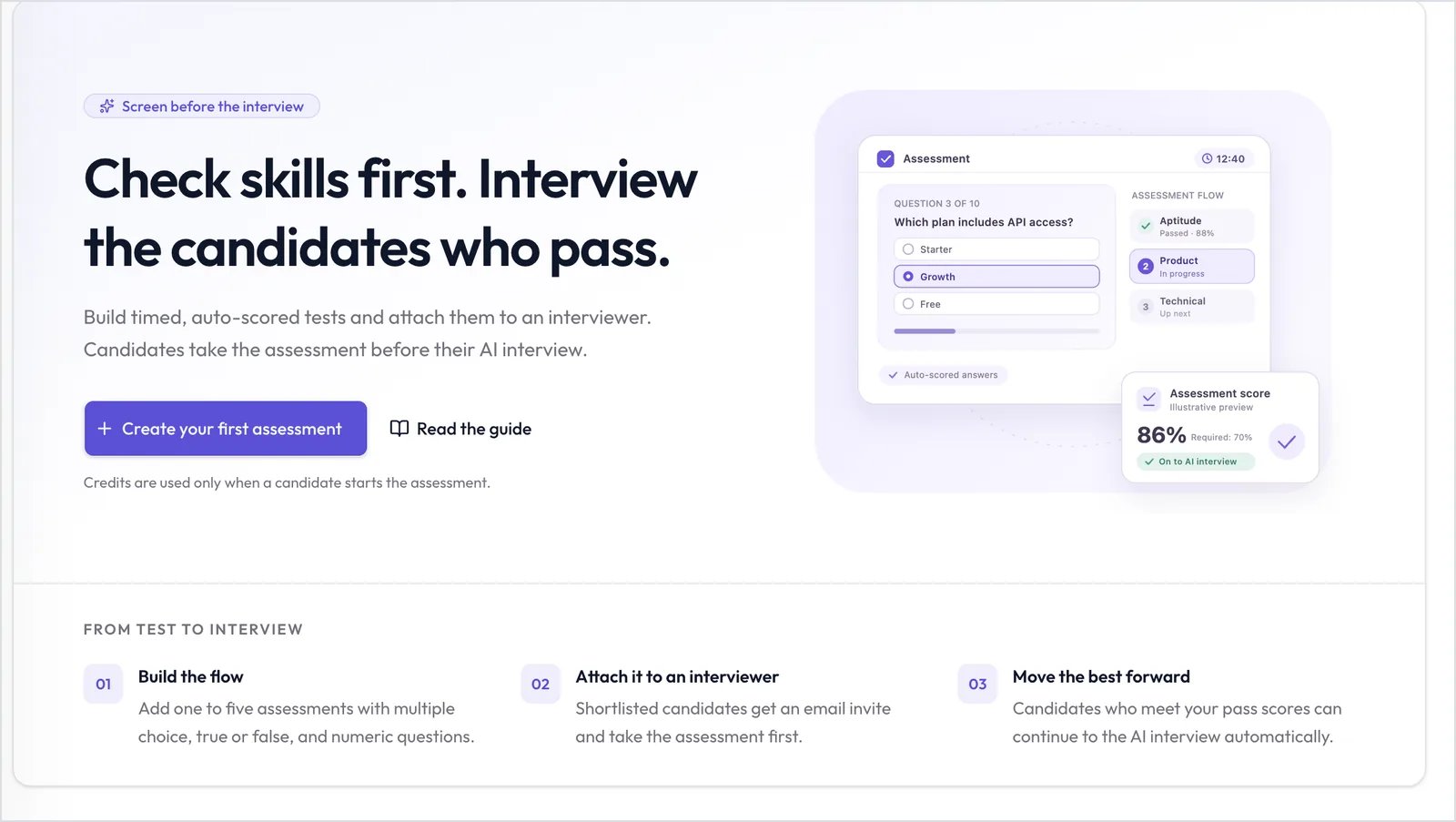
The Assessments page before you create your first flow.
When to use it
- Knowledge with right answers, such as product knowledge, numeracy, or aptitude.
- High-volume roles, where only Candidates who pass a short test should reach the AI interview.
- A written sample, using a long-answer question you read yourself.
- Typing speed and accuracy, using a typing test.
Before you begin
- Only Owners can create flows and shortlist Candidates. Viewers can read results.
- You need an active Interviewer that doesn’t already have an assessment flow.
How an assessment flow works
- Each Interviewer can have one flow, with one to five assessments in the order you set.
- Each assessment has a pass score and a weight. Together they make the Candidate’s Assessment score.
- The flow is open between the Assessment starts and Assessment ends times.
The Candidate journey
When you shortlist a Candidate for an Interviewer with a flow, they take the assessment first. Their stage changes as they go:- Shortlisted for Assessment: they get an email with a link and reminders until Assessment ends. If you invite them directly, their link expires on the day you choose.
- Assessment In Progress: they’ve started.
- Assessment Completed: they’ve finished every assessment.
- Automatically continue to the AI interview is on: Candidates who meet the Required total score and pass every Required assessment move on. Others are declined.
- The Interviewer is public and auto-continue is off: every Candidate who finishes moves on.
- Otherwise: review the results, then click Shortlist for AI interview on the Candidate’s report.
Invite Candidates
You can invite people straight to an assessment, without an application. They join the Interviewer as Candidates, get the assessment email, and continue to the AI interview as usual. Only Owners can invite.1
Open the assessment
In the sidebar, click Assessments, then click the assessment.
2
Add Candidates
Click Invite. Enter each Candidate’s name and email in Add manually, or upload a CSV with name and email columns in Upload CSV. If the Interviewer uses phone interviews, add a phone number too. You can invite up to 100 Candidates at once.
3
Set the link expiry
In Link expiry (days), choose how long the link works, from 1 to 30 days. The link must expire after the assessment opens and on or before Assessment ends.
4
Send the invites
Click Send. Anyone who couldn’t be invited is listed with the reason.
What the Candidate sees
- An email with a unique link.
- A Before you begin page with your instructions, the time for each assessment, and a language picker.
- A device check, if you require a camera, microphone, or fullscreen.
- One question at a time, with a timer. Answers save automatically.
- A final review before they submit.