Change an AI Interviewer’s setup, or describe changes in plain language with Edit with AI.
You can change any part of an Interviewer after you create it. Use Edit with AI to describe a change in plain language and let the AI fill in the form.
Edit with AI is a chat panel on the edit page. Describe a change and the AI updates the form. Nothing is saved until you click Update.
1
Describe the change
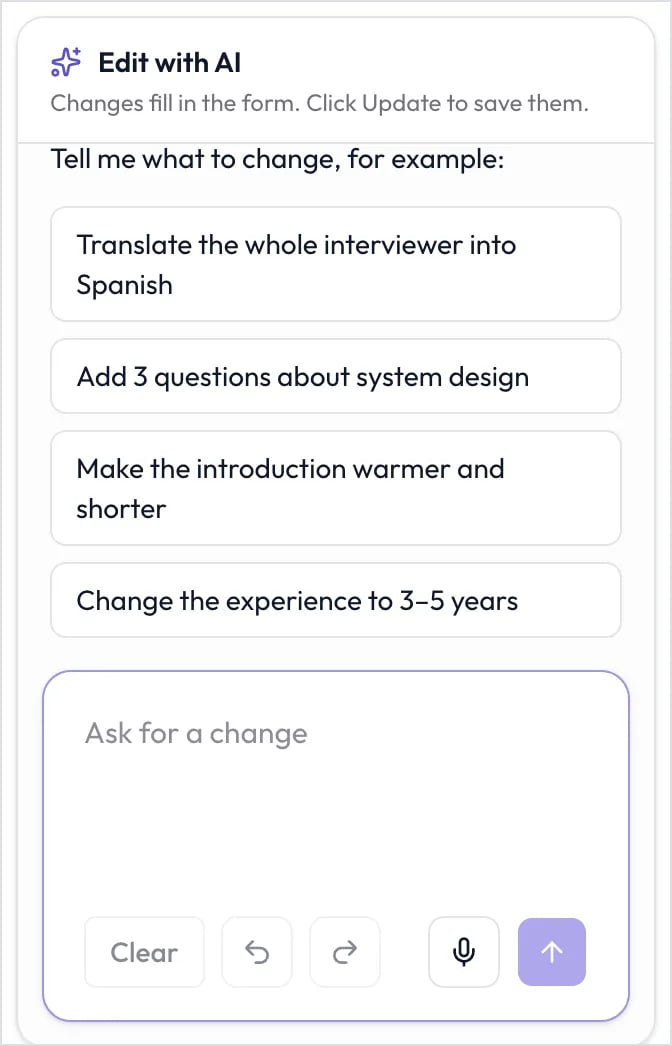
Type your request in Ask for a change, such as “Translate the whole interviewer into Spanish”, “Make the introduction warmer and shorter”, or “Turn off captions for candidates”. To speak instead, click the microphone, then click it again when you’re done.
The Edit with AI panel before your first request.
2
Review what changed
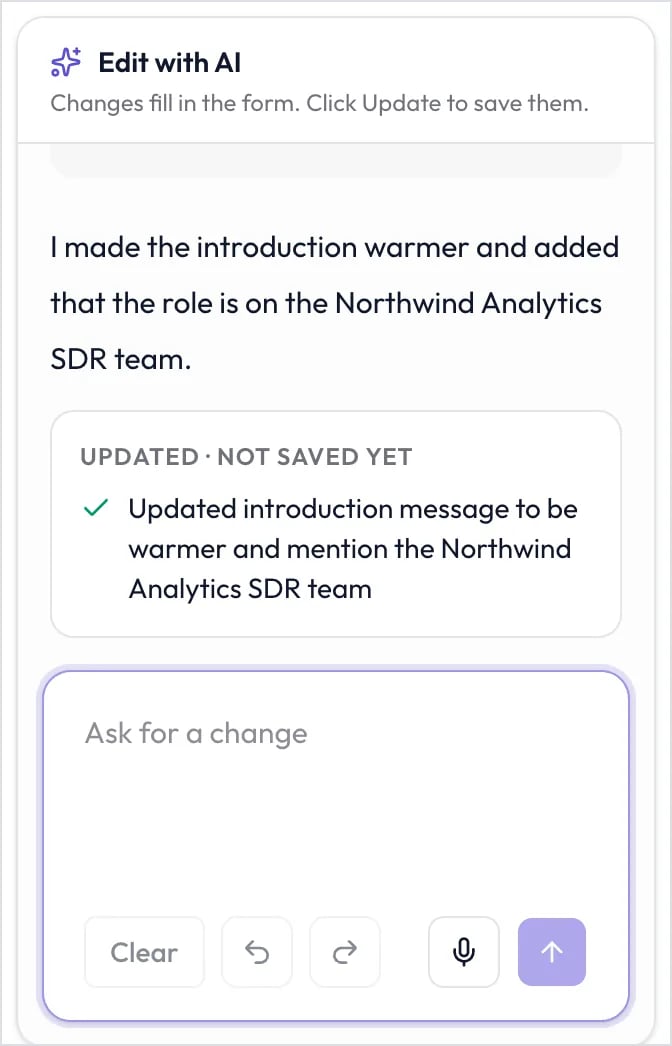
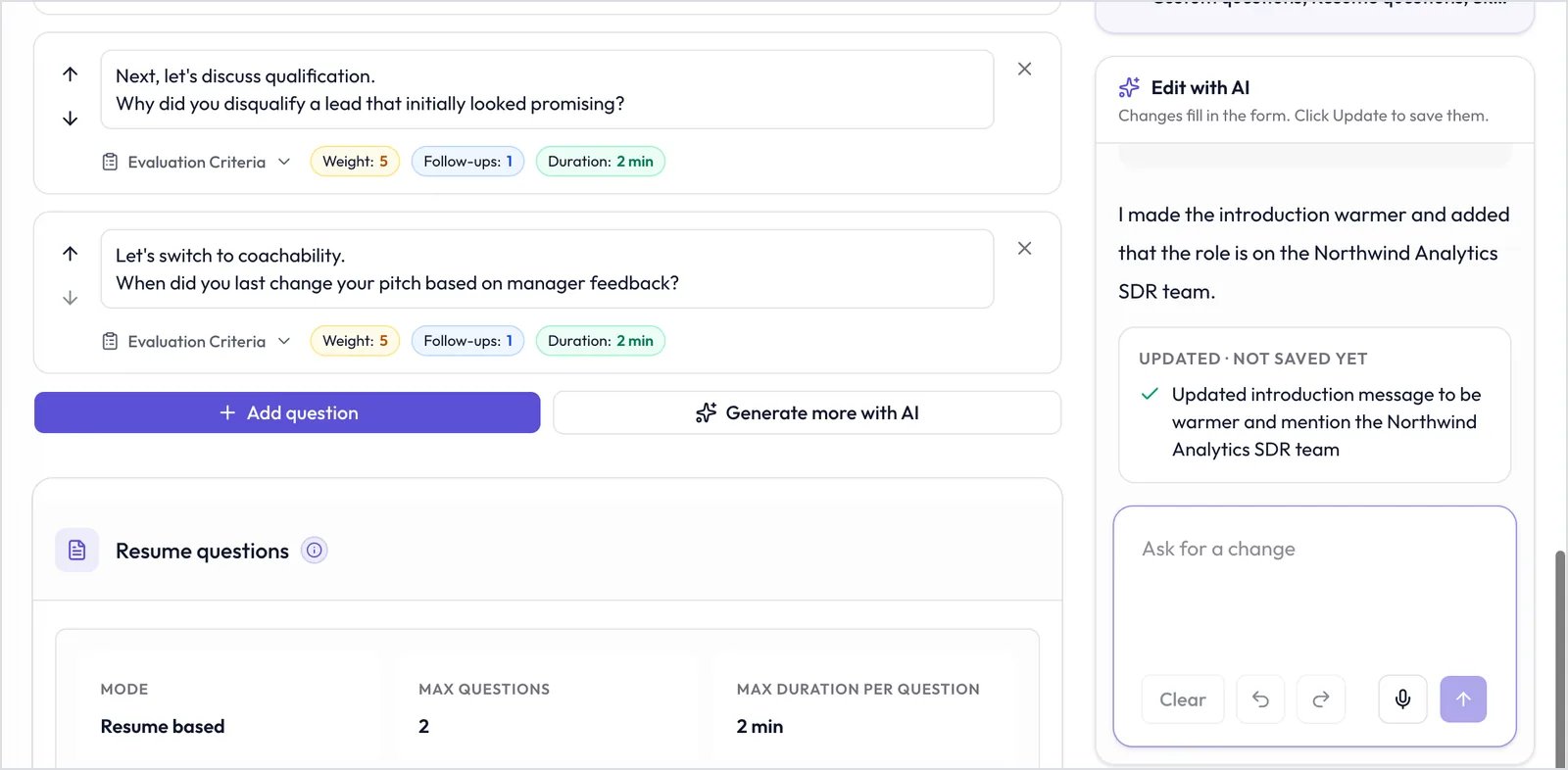
The AI lists what it changed. Open that step to check the result.
The AI's reply lists what it changed.
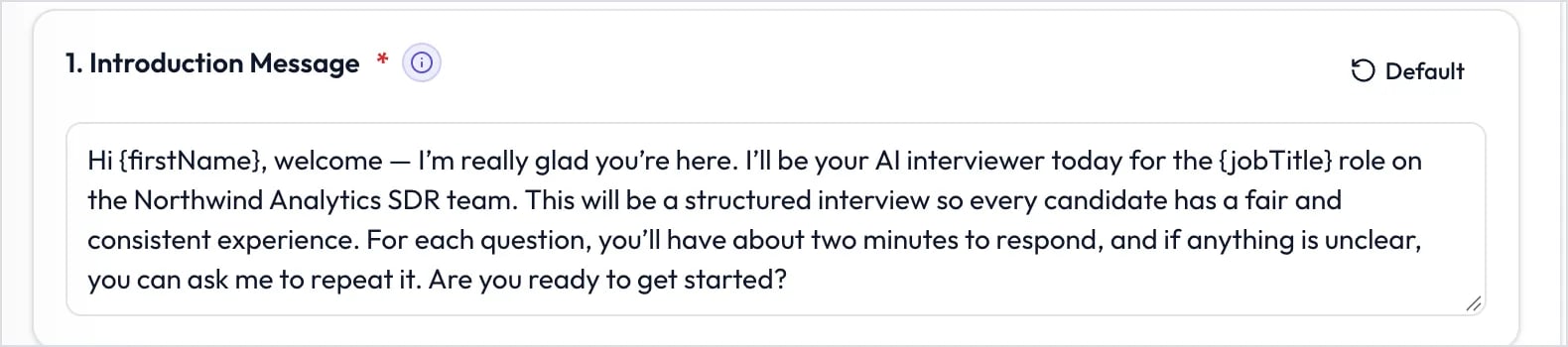
The updated introduction message in the form.
3
Refine or undo
Send another request to adjust it, or ask the AI to undo it.
{"docsConfig":{"theme":"mint","$schema":"https://mintlify.com/docs.json","name":"InterviewFlowAI Knowledge Base","colors":{"primary":"#000000","light":"#333333","dark":"#000000"},"logo":{"light":"https://mintcdn.com/interviewflowai/3Gmnw_L8IR0faXhJ/logo/logo.png?fit=max\u0026auto=format\u0026n=3Gmnw_L8IR0faXhJ\u0026q=85\u0026s=2eefa6ed5f15b3b9fe696130b4e91d1a","dark":"https://mintcdn.com/interviewflowai/HHntDfCf9L_iX9_5/logo/logo_dark.png?fit=max\u0026auto=format\u0026n=HHntDfCf9L_iX9_5\u0026q=85\u0026s=b6a48ac6c4168660ec1887845e784135"},"favicon":"https://mintcdn.com/interviewflowai/QTePgE545nTugw-v/favicon.png?fit=max\u0026auto=format\u0026n=QTePgE545nTugw-v\u0026q=85\u0026s=0b8290bc9a3e6ea91ca417135d5e3f5d","navbar":{"links":[{"href":"mailto:support@interviewflowai.com","label":"Support"}],"primary":{"type":"button","label":"Dashboard","href":"https://app.interviewflowai.com"}},"footer":{"socials":{"x":"https://x.com/interviewflowai","linkedin":"https://linkedin.com/company/interviewflowai"}},"styling":{"latex":false},"navigation":{"global":{"anchors":[{"anchor":"Website","icon":"globe","href":"https://interviewflowai.com/"}]},"pages":[]}},"deployment":{"deploymentMetadataValue":{"subdomain":"interviewflowai","hasAudioNarration":false,"actualSubdomain":"interviewflowai","customDomains":["docs.interviewflowai.com"],"gitSource":{"type":"github","owner":"imukulmunjal","repo":"docs","deployBranch":"main","isPrivate":true,"contentDirectory":"","mountPath":"","label":""},"feedback":{"thumbs":true},"entitlements":{},"buildId":"6af1d49bf9312b54bbd34e09","clientVersion":"0.0.4094","searchFilterCounts":[{"language":"default","tag":"Documentation","count":59},{"language":"default","tag":"Main","count":31},{"language":"default","tag":"Interviewers","count":22},{"language":"default","tag":"Settings","count":17},{"language":"default","tag":"ATS \u0026 Integrations","count":9},{"language":"default","tag":"Create an AI Interviewer","count":7},{"language":"default","tag":"Configuration","count":6},{"language":"default","tag":"Getting started","count":5},{"language":"default","tag":"Manage","count":4},{"language":"default","tag":"Role plays","count":3}]},"assistantConfig":{"enableAskAiButton":false,"enableStarterQuestions":false,"enableContextualStarterQuestions":false,"enableAskAiSearchBar":true},"basePath":"","hasChatPermissions":false,"hasWebMcpPermissions":false,"toggles":[{"name":"kill-isr","enabled":true,"variant":{"name":"disabled","enabled":false,"feature_enabled":true},"impressionData":false},{"name":"agent-mintlify-slack","enabled":true,"variant":{"name":"disabled","enabled":false,"feature_enabled":true},"impressionData":false},{"name":"agent-integrations-settings","enabled":true,"variant":{"name":"disabled","enabled":false,"feature_enabled":true},"impressionData":false},{"name":"rbac-expansion","enabled":true,"variant":{"name":"disabled","enabled":false,"feature_enabled":true},"impressionData":false},{"name":"automations-pr-grouping","enabled":true,"variant":{"name":"disabled","enabled":false,"feature_enabled":true},"impressionData":false},{"name":"custom-prefix","enabled":true,"variant":{"name":"disabled","enabled":false,"feature_enabled":true},"impressionData":false},{"name":"analytics-v7","enabled":true,"variant":{"name":"disabled","enabled":false,"feature_enabled":true},"impressionData":false},{"name":"user-flows-analytics","enabled":true,"variant":{"name":"disabled","enabled":false,"feature_enabled":true},"impressionData":false},{"name":"no-publish-flow","enabled":true,"variant":{"name":"disabled","enabled":false,"feature_enabled":true},"impressionData":false},{"name":"workos-onboarding","enabled":true,"variant":{"name":"disabled","enabled":false,"feature_enabled":true},"impressionData":false},{"name":"llms-txt-v2","enabled":true,"variant":{"name":"disabled","enabled":false,"feature_enabled":true},"impressionData":false},{"name":"snapshot-serving-live","enabled":true,"variant":{"name":"disabled","enabled":false,"feature_enabled":true},"impressionData":false},{"name":"stripTemperatureMiddleware","enabled":true,"variant":{"name":"disabled","enabled":false,"feature_enabled":true},"impressionData":false},{"name":"support-platform-pylon-zendesk","enabled":true,"variant":{"name":"disabled","enabled":false,"feature_enabled":true},"impressionData":false},{"name":"snapshot-serving","enabled":true,"variant":{"name":"disabled","enabled":false,"feature_enabled":true},"impressionData":false},{"name":"instant-rollback","enabled":true,"variant":{"name":"disabled","enabled":false,"feature_enabled":true},"impressionData":false},{"name":"granular-notifications-server","enabled":true,"variant":{"name":"disabled","enabled":false,"feature_enabled":true},"impressionData":false},{"name":"granular-notifications","enabled":true,"variant":{"name":"disabled","enabled":false,"feature_enabled":true},"impressionData":false},{"name":"automations-fable","enabled":true,"variant":{"name":"disabled","enabled":false,"feature_enabled":true},"impressionData":false},{"name":"fixed-ai-action-pricing","enabled":true,"variant":{"name":"disabled","enabled":false,"feature_enabled":true},"impressionData":false},{"name":"automation-resolve-merge-conflict","enabled":true,"variant":{"name":"disabled","enabled":false,"feature_enabled":true},"impressionData":false},{"name":"scoped-publishing","enabled":true,"variant":{"name":"disabled","enabled":false,"feature_enabled":true},"impressionData":false},{"name":"mintql","enabled":true,"variant":{"name":"disabled","enabled":false,"feature_enabled":true},"impressionData":false},{"name":"page-level-analytics","enabled":true,"variant":{"name":"disabled","enabled":false,"feature_enabled":true},"impressionData":false},{"name":"editor-version-history-v2","enabled":true,"variant":{"name":"disabled","enabled":false,"feature_enabled":true},"impressionData":false},{"name":"billing-page-v2","enabled":true,"variant":{"name":"disabled","enabled":false,"feature_enabled":true},"impressionData":false},{"name":"full-page-search","enabled":true,"variant":{"name":"disabled","enabled":false,"feature_enabled":true},"impressionData":false},{"name":"workspace-projects","enabled":true,"variant":{"name":"disabled","enabled":false,"feature_enabled":true},"impressionData":false},{"name":"assistant-v5","enabled":true,"variant":{"name":"disabled","enabled":false,"feature_enabled":true},"impressionData":false},{"name":"fork-pr-previews","enabled":true,"variant":{"name":"disabled","enabled":false,"feature_enabled":true},"impressionData":false},{"name":"revalidation-jwt","enabled":true,"variant":{"name":"disabled","enabled":false,"feature_enabled":true},"impressionData":false},{"name":"workos-sso-scim","enabled":true,"variant":{"name":"disabled","enabled":false,"feature_enabled":true},"impressionData":false},{"name":"hobby-abuse-scan","enabled":true,"variant":{"name":"disabled","enabled":false,"feature_enabled":true},"impressionData":false},{"name":"dashboard-inbox","enabled":true,"variant":{"name":"disabled","enabled":false,"feature_enabled":true},"impressionData":false},{"name":"workos-signup","enabled":true,"variant":{"name":"disabled","enabled":false,"feature_enabled":true},"impressionData":false},{"name":"turbopuffer-dual-write","enabled":true,"variant":{"name":"disabled","enabled":false,"feature_enabled":true},"impressionData":false},{"name":"workos-enabled","enabled":true,"variant":{"name":"disabled","enabled":false,"feature_enabled":true},"impressionData":false},{"name":"approve-review-flow","enabled":true,"variant":{"name":"disabled","enabled":false,"feature_enabled":true},"impressionData":false},{"name":"editor-metadata","enabled":true,"variant":{"name":"disabled","enabled":false,"feature_enabled":true},"impressionData":false},{"name":"sso-setup-deadline-banner","enabled":true,"variant":{"name":"disabled","enabled":false,"feature_enabled":true},"impressionData":false},{"name":"turbopuffer-serve","enabled":true,"variant":{"name":"disabled","enabled":false,"feature_enabled":true},"impressionData":false},{"name":"live-agents","enabled":true,"variant":{"name":"disabled","enabled":false,"feature_enabled":true},"impressionData":false},{"name":"comment-mode","enabled":true,"variant":{"name":"disabled","enabled":false,"feature_enabled":true},"impressionData":false}],"googleFontsInlined":false},"customCss":[{"filePath":"custom.css","content":"img[src*=\"/logo/logo\"]{transform:scale(1.2)!important;transform-origin:left center!important}"}],"page":{"pagePath":"interview-automation/create-an-ai-interviewer/edit-an-interviewer","slug":"/interview-automation/create-an-ai-interviewer/edit-an-interviewer","pageMetadata":{"title":"Edit an Interviewer","description":"Change an AI Interviewer's setup, or describe changes in plain language with Edit with AI.","href":"/interview-automation/create-an-ai-interviewer/edit-an-interviewer"},"description":{"compiledSource":"\"use strict\";\nconst {jsx: _jsx} = arguments[0];\nconst {useMDXComponents: _provideComponents} = arguments[0];\nfunction _createMdxContent(props) {\n const _components = {\n p: \"p\",\n ..._provideComponents(),\n ...props.components\n };\n return _jsx(_components.p, {\n children: \"Change an AI Interviewer’s setup, or describe changes in plain language with Edit with AI.\"\n });\n}\nfunction MDXContent(props = {}) {\n const {wrapper: MDXLayout} = {\n ..._provideComponents(),\n ...props.components\n };\n return MDXLayout ? _jsx(MDXLayout, {\n ...props,\n children: _jsx(_createMdxContent, {\n ...props\n })\n }) : _createMdxContent(props);\n}\nreturn {\n default: MDXContent\n};\n","frontmatter":{},"scope":{}},"pageType":"default","mdx":{"mdxSource":{"compiledSource":"\"use strict\";const{Fragment:_Fragment,jsx:_jsx,jsxs:_jsxs}=arguments[0];const{useMDXComponents:_provideComponents}=arguments[0];function _createMdxContent(props){const _components={a:`a`,li:`li`,p:`p`,strong:`strong`,ul:`ul`,..._provideComponents(),...props.components},{Accordion,AccordionGroup,Frame,Heading,OptimizedImage,Step,Steps}=_components;if(!Accordion)_missingMdxReference(`Accordion`,true);if(!AccordionGroup)_missingMdxReference(`AccordionGroup`,true);if(!Frame)_missingMdxReference(`Frame`,true);if(!Heading)_missingMdxReference(`Heading`,true);if(!OptimizedImage)_missingMdxReference(`OptimizedImage`,true);if(!Step)_missingMdxReference(`Step`,true);if(!Steps)_missingMdxReference(`Steps`,true);return _jsxs(_Fragment,{children:[_jsxs(_components.p,{children:[`You can change any part of an Interviewer after you create it. Use `,_jsx(_components.strong,{children:`Edit with AI`}),` to describe a change in plain language and let the AI fill in the form.`]}),`\n`,_jsx(Heading,{level:`2`,id:`before-you-begin`,children:`Before you begin`}),`\n`,_jsx(_components.p,{children:`Only Owners can edit Interviewers.`}),`\n`,_jsx(Heading,{level:`2`,id:`edit-an-interviewer`,children:`Edit an Interviewer`}),`\n`,_jsxs(Steps,{children:[_jsxs(Step,{title:`Open the edit page`,children:[_jsxs(_components.p,{children:[`On the `,_jsx(_components.strong,{children:`Interviewers`}),` page, click `,_jsx(_components.strong,{children:`⋯`}),` on the Interviewer’s row, then `,_jsx(_components.strong,{children:`Edit`}),`. Or click the pencil icon next to the Interviewer’s title.`]}),_jsx(Frame,{caption:`The edit page uses the same five steps as creating an Interviewer.`,children:_jsx(OptimizedImage,{src:`https://mintcdn.com/interviewflowai/HRBSxctx-j5zevDW/images/interviewers/create/edit-interviewer-header.webp?fit=max\u0026auto=format\u0026n=HRBSxctx-j5zevDW\u0026q=85\u0026s=5645c17ce615d46a19a81ab3b6027c64`,alt:`The Edit Sales Development Representative page with Back to dashboard and Update buttons, and Setup progress at Step 1 of 5.`,\"data-og-width\":`1600`,width:`1600`,\"data-og-height\":`547`,height:`547`,\"data-path\":`images/interviewers/create/edit-interviewer-header.webp`,\"data-optimize\":`true`,\"data-opv\":`3`,srcset:`https://mintcdn.com/interviewflowai/HRBSxctx-j5zevDW/images/interviewers/create/edit-interviewer-header.webp?w=280\u0026fit=max\u0026auto=format\u0026n=HRBSxctx-j5zevDW\u0026q=85\u0026s=c79a1c701616927807f75aa2e2c923fb 280w, https://mintcdn.com/interviewflowai/HRBSxctx-j5zevDW/images/interviewers/create/edit-interviewer-header.webp?w=560\u0026fit=max\u0026auto=format\u0026n=HRBSxctx-j5zevDW\u0026q=85\u0026s=bc43703a664920d119ea6e163af32db0 560w, https://mintcdn.com/interviewflowai/HRBSxctx-j5zevDW/images/interviewers/create/edit-interviewer-header.webp?w=840\u0026fit=max\u0026auto=format\u0026n=HRBSxctx-j5zevDW\u0026q=85\u0026s=6649e22129f535c55165d8977c4a5fbf 840w, https://mintcdn.com/interviewflowai/HRBSxctx-j5zevDW/images/interviewers/create/edit-interviewer-header.webp?w=1100\u0026fit=max\u0026auto=format\u0026n=HRBSxctx-j5zevDW\u0026q=85\u0026s=a388c91b71147a3111c4a22f54ce80eb 1100w, https://mintcdn.com/interviewflowai/HRBSxctx-j5zevDW/images/interviewers/create/edit-interviewer-header.webp?w=1650\u0026fit=max\u0026auto=format\u0026n=HRBSxctx-j5zevDW\u0026q=85\u0026s=451a1680088580156f7d817e784c84a9 1650w, https://mintcdn.com/interviewflowai/HRBSxctx-j5zevDW/images/interviewers/create/edit-interviewer-header.webp?w=2500\u0026fit=max\u0026auto=format\u0026n=HRBSxctx-j5zevDW\u0026q=85\u0026s=f5d7555cafe9c78344e87fefd59cd29e 2500w`})})]}),_jsx(Step,{title:`Open the step you want to change`,children:_jsxs(_components.p,{children:[`Click a step card, such as `,_jsx(_components.strong,{children:`Interview settings`}),` or `,_jsx(_components.strong,{children:`Questions`}),`. The steps match `,_jsx(_components.a,{href:`/interview-automation/create-an-ai-interviewer/overview`,children:`creating an Interviewer`}),`.`]})}),_jsx(Step,{title:`Make your changes`,children:_jsxs(_components.p,{children:[`Edit the fields directly, or use `,_jsx(_components.strong,{children:`Edit with AI`}),`.`]})}),_jsx(Step,{title:`Save`,children:_jsxs(_components.p,{children:[`Click `,_jsx(_components.strong,{children:`Update`}),`.`]})})]}),`\n`,_jsxs(_components.p,{children:[`If you leave with unsaved changes, you’re asked to `,_jsx(_components.strong,{children:`Keep editing`}),` or `,_jsx(_components.strong,{children:`Leave without saving`}),`.`]}),`\n`,_jsx(Frame,{caption:`The dialog that protects unsaved changes.`,children:_jsx(OptimizedImage,{src:`https://mintcdn.com/interviewflowai/HRBSxctx-j5zevDW/images/interviewers/create/edit-leave-without-saving.webp?fit=max\u0026auto=format\u0026n=HRBSxctx-j5zevDW\u0026q=85\u0026s=1f944fc668e6d9dcd9930f407b512078`,alt:`The Leave without saving? dialog with the text You have unsaved changes to this interviewer and the Keep editing and Leave without saving buttons.`,\"data-og-width\":`808`,width:`808`,\"data-og-height\":`374`,height:`374`,\"data-path\":`images/interviewers/create/edit-leave-without-saving.webp`,\"data-optimize\":`true`,\"data-opv\":`3`,srcset:`https://mintcdn.com/interviewflowai/HRBSxctx-j5zevDW/images/interviewers/create/edit-leave-without-saving.webp?w=280\u0026fit=max\u0026auto=format\u0026n=HRBSxctx-j5zevDW\u0026q=85\u0026s=294bc5552123f8c0d983dca6fdaabba0 280w, https://mintcdn.com/interviewflowai/HRBSxctx-j5zevDW/images/interviewers/create/edit-leave-without-saving.webp?w=560\u0026fit=max\u0026auto=format\u0026n=HRBSxctx-j5zevDW\u0026q=85\u0026s=4e26c9b95412116d99266652fee173ee 560w, https://mintcdn.com/interviewflowai/HRBSxctx-j5zevDW/images/interviewers/create/edit-leave-without-saving.webp?w=840\u0026fit=max\u0026auto=format\u0026n=HRBSxctx-j5zevDW\u0026q=85\u0026s=4420e9e8a791eaf436bd82617ad34823 840w, https://mintcdn.com/interviewflowai/HRBSxctx-j5zevDW/images/interviewers/create/edit-leave-without-saving.webp?w=1100\u0026fit=max\u0026auto=format\u0026n=HRBSxctx-j5zevDW\u0026q=85\u0026s=8bfa330b6fa425239ac39792542064ea 1100w, https://mintcdn.com/interviewflowai/HRBSxctx-j5zevDW/images/interviewers/create/edit-leave-without-saving.webp?w=1650\u0026fit=max\u0026auto=format\u0026n=HRBSxctx-j5zevDW\u0026q=85\u0026s=acc7a9d916d7f7cab2956fe1fa881d37 1650w, https://mintcdn.com/interviewflowai/HRBSxctx-j5zevDW/images/interviewers/create/edit-leave-without-saving.webp?w=2500\u0026fit=max\u0026auto=format\u0026n=HRBSxctx-j5zevDW\u0026q=85\u0026s=c97b68b385e2b48e9ce331f4b0133a8f 2500w`})}),`\n`,_jsx(Heading,{level:`2`,id:`edit-with-ai`,children:`Edit with AI`}),`\n`,_jsxs(_components.p,{children:[_jsx(_components.strong,{children:`Edit with AI`}),` is a chat panel on the edit page. Describe a change and the AI updates the form. Nothing is saved until you click `,_jsx(_components.strong,{children:`Update`}),`.`]}),`\n`,_jsxs(Steps,{children:[_jsxs(Step,{title:`Describe the change`,children:[_jsxs(_components.p,{children:[`Type your request in `,_jsx(_components.strong,{children:`Ask for a change`}),`, such as “Translate the whole interviewer into Spanish”, “Make the introduction warmer and shorter”, or “Turn off captions for candidates”. To speak instead, click the microphone, then click it again when you’re done.`]}),_jsx(Frame,{caption:`The Edit with AI panel before your first request.`,children:_jsx(OptimizedImage,{src:`https://mintcdn.com/interviewflowai/HRBSxctx-j5zevDW/images/interviewers/create/edit-with-ai-panel.webp?fit=max\u0026auto=format\u0026n=HRBSxctx-j5zevDW\u0026q=85\u0026s=e0d4f52031a6d2b3a261307f3cd49917`,alt:`The Edit with AI panel with the note Changes fill in the form. Click Update to save them, four example requests, and the Ask for a change box.`,\"data-og-width\":`672`,width:`672`,\"data-og-height\":`1046`,height:`1046`,\"data-path\":`images/interviewers/create/edit-with-ai-panel.webp`,\"data-optimize\":`true`,\"data-opv\":`3`,srcset:`https://mintcdn.com/interviewflowai/HRBSxctx-j5zevDW/images/interviewers/create/edit-with-ai-panel.webp?w=280\u0026fit=max\u0026auto=format\u0026n=HRBSxctx-j5zevDW\u0026q=85\u0026s=b47181c1e131072a5430573d33a3067b 280w, https://mintcdn.com/interviewflowai/HRBSxctx-j5zevDW/images/interviewers/create/edit-with-ai-panel.webp?w=560\u0026fit=max\u0026auto=format\u0026n=HRBSxctx-j5zevDW\u0026q=85\u0026s=76e201a53c9567bb8e57ccf8cf787d69 560w, https://mintcdn.com/interviewflowai/HRBSxctx-j5zevDW/images/interviewers/create/edit-with-ai-panel.webp?w=840\u0026fit=max\u0026auto=format\u0026n=HRBSxctx-j5zevDW\u0026q=85\u0026s=ed3917c0cb7b2daaeccd57ef10bcf5ed 840w, https://mintcdn.com/interviewflowai/HRBSxctx-j5zevDW/images/interviewers/create/edit-with-ai-panel.webp?w=1100\u0026fit=max\u0026auto=format\u0026n=HRBSxctx-j5zevDW\u0026q=85\u0026s=434df5510fae24eaa5f1fa268ee7ff23 1100w, https://mintcdn.com/interviewflowai/HRBSxctx-j5zevDW/images/interviewers/create/edit-with-ai-panel.webp?w=1650\u0026fit=max\u0026auto=format\u0026n=HRBSxctx-j5zevDW\u0026q=85\u0026s=c054464328746d022e168429918a02ce 1650w, https://mintcdn.com/interviewflowai/HRBSxctx-j5zevDW/images/interviewers/create/edit-with-ai-panel.webp?w=2500\u0026fit=max\u0026auto=format\u0026n=HRBSxctx-j5zevDW\u0026q=85\u0026s=9327bff7026a0ce0bc737b40ccd79df0 2500w`})})]}),_jsxs(Step,{title:`Review what changed`,children:[_jsx(_components.p,{children:`The AI lists what it changed. Open that step to check the result.`}),_jsx(Frame,{caption:`The AI's reply lists what it changed.`,children:_jsx(OptimizedImage,{src:`https://mintcdn.com/interviewflowai/HRBSxctx-j5zevDW/images/interviewers/create/edit-with-ai-reply.webp?fit=max\u0026auto=format\u0026n=HRBSxctx-j5zevDW\u0026q=85\u0026s=6c99205793db5d365a118b4b0bd29152`,alt:`The Edit with AI panel showing the reply I made the introduction warmer and added that the role is on the Northwind Analytics SDR team, with an Updated, Not saved yet list.`,\"data-og-width\":`672`,width:`672`,\"data-og-height\":`1046`,height:`1046`,\"data-path\":`images/interviewers/create/edit-with-ai-reply.webp`,\"data-optimize\":`true`,\"data-opv\":`3`,srcset:`https://mintcdn.com/interviewflowai/HRBSxctx-j5zevDW/images/interviewers/create/edit-with-ai-reply.webp?w=280\u0026fit=max\u0026auto=format\u0026n=HRBSxctx-j5zevDW\u0026q=85\u0026s=4bdd079ee28a55a5a127e1c7333d3894 280w, https://mintcdn.com/interviewflowai/HRBSxctx-j5zevDW/images/interviewers/create/edit-with-ai-reply.webp?w=560\u0026fit=max\u0026auto=format\u0026n=HRBSxctx-j5zevDW\u0026q=85\u0026s=8c8347b2fe48dd6fec81ad95c745aea2 560w, https://mintcdn.com/interviewflowai/HRBSxctx-j5zevDW/images/interviewers/create/edit-with-ai-reply.webp?w=840\u0026fit=max\u0026auto=format\u0026n=HRBSxctx-j5zevDW\u0026q=85\u0026s=482ca00fc52f6eb7cf04020163f756ec 840w, https://mintcdn.com/interviewflowai/HRBSxctx-j5zevDW/images/interviewers/create/edit-with-ai-reply.webp?w=1100\u0026fit=max\u0026auto=format\u0026n=HRBSxctx-j5zevDW\u0026q=85\u0026s=f99123d66fb2b72478d46028c1ffdcf6 1100w, https://mintcdn.com/interviewflowai/HRBSxctx-j5zevDW/images/interviewers/create/edit-with-ai-reply.webp?w=1650\u0026fit=max\u0026auto=format\u0026n=HRBSxctx-j5zevDW\u0026q=85\u0026s=a2250759544cabad9de81095d7438411 1650w, https://mintcdn.com/interviewflowai/HRBSxctx-j5zevDW/images/interviewers/create/edit-with-ai-reply.webp?w=2500\u0026fit=max\u0026auto=format\u0026n=HRBSxctx-j5zevDW\u0026q=85\u0026s=8891b81a38a205b282a9ce36414507e6 2500w`})}),_jsx(Frame,{caption:`The updated introduction message in the form.`,children:_jsx(OptimizedImage,{src:`https://mintcdn.com/interviewflowai/HRBSxctx-j5zevDW/images/interviewers/create/edit-with-ai-result.webp?fit=max\u0026auto=format\u0026n=HRBSxctx-j5zevDW\u0026q=85\u0026s=38af8d786949b25a71dac88bb30f0e6e`,alt:`The Introduction Message field with a warmer greeting that mentions the Northwind Analytics SDR team.`,\"data-og-width\":`1580`,width:`1580`,\"data-og-height\":`350`,height:`350`,\"data-path\":`images/interviewers/create/edit-with-ai-result.webp`,\"data-optimize\":`true`,\"data-opv\":`3`,srcset:`https://mintcdn.com/interviewflowai/HRBSxctx-j5zevDW/images/interviewers/create/edit-with-ai-result.webp?w=280\u0026fit=max\u0026auto=format\u0026n=HRBSxctx-j5zevDW\u0026q=85\u0026s=bb5bf7f5682f98c812da61686c86ff51 280w, https://mintcdn.com/interviewflowai/HRBSxctx-j5zevDW/images/interviewers/create/edit-with-ai-result.webp?w=560\u0026fit=max\u0026auto=format\u0026n=HRBSxctx-j5zevDW\u0026q=85\u0026s=190cfda6b6c720194c52a137fc8f8606 560w, https://mintcdn.com/interviewflowai/HRBSxctx-j5zevDW/images/interviewers/create/edit-with-ai-result.webp?w=840\u0026fit=max\u0026auto=format\u0026n=HRBSxctx-j5zevDW\u0026q=85\u0026s=a963f856e59af1c1a7ef41ac7dca499c 840w, https://mintcdn.com/interviewflowai/HRBSxctx-j5zevDW/images/interviewers/create/edit-with-ai-result.webp?w=1100\u0026fit=max\u0026auto=format\u0026n=HRBSxctx-j5zevDW\u0026q=85\u0026s=f41e597f9f2d2769fcccca96a987c34e 1100w, https://mintcdn.com/interviewflowai/HRBSxctx-j5zevDW/images/interviewers/create/edit-with-ai-result.webp?w=1650\u0026fit=max\u0026auto=format\u0026n=HRBSxctx-j5zevDW\u0026q=85\u0026s=2bc8e68322524c95150a594c7141d3e2 1650w, https://mintcdn.com/interviewflowai/HRBSxctx-j5zevDW/images/interviewers/create/edit-with-ai-result.webp?w=2500\u0026fit=max\u0026auto=format\u0026n=HRBSxctx-j5zevDW\u0026q=85\u0026s=e4814850042e5bf2c867989efda7609b 2500w`})})]}),_jsx(Step,{title:`Refine or undo`,children:_jsx(_components.p,{children:`Send another request to adjust it, or ask the AI to undo it.`})}),_jsx(Step,{title:`Save`,children:_jsxs(_components.p,{children:[`Click `,_jsx(_components.strong,{children:`Update`}),`.`]})})]}),`\n`,_jsx(Heading,{level:`2`,id:`generate-more-manual-questions`,children:`Generate more manual questions`}),`\n`,_jsxs(_components.p,{children:[`On the `,_jsx(_components.strong,{children:`Questions`}),` step, click `,_jsx(_components.strong,{children:`Generate more with AI`}),`. The AI adds new questions based on your role details. Review them, then click `,_jsx(_components.strong,{children:`Update`}),`.`]}),`\n`,_jsx(Frame,{caption:`Generate more with AI on the Questions step, with the Edit with AI panel on the right.`,children:_jsx(OptimizedImage,{src:`https://mintcdn.com/interviewflowai/HRBSxctx-j5zevDW/images/interviewers/create/edit-generate-more-and-ai-panel.webp?fit=max\u0026auto=format\u0026n=HRBSxctx-j5zevDW\u0026q=85\u0026s=8522766b21779a704e22771617905db4`,alt:`The Questions step of the edit page with the Add question and Generate more with AI buttons, and the Edit with AI panel on the right.`,\"data-og-width\":`1600`,width:`1600`,\"data-og-height\":`786`,height:`786`,\"data-path\":`images/interviewers/create/edit-generate-more-and-ai-panel.webp`,\"data-optimize\":`true`,\"data-opv\":`3`,srcset:`https://mintcdn.com/interviewflowai/HRBSxctx-j5zevDW/images/interviewers/create/edit-generate-more-and-ai-panel.webp?w=280\u0026fit=max\u0026auto=format\u0026n=HRBSxctx-j5zevDW\u0026q=85\u0026s=71e317308c127f969c14e72d0afe4f2a 280w, https://mintcdn.com/interviewflowai/HRBSxctx-j5zevDW/images/interviewers/create/edit-generate-more-and-ai-panel.webp?w=560\u0026fit=max\u0026auto=format\u0026n=HRBSxctx-j5zevDW\u0026q=85\u0026s=55b042532d785a7a93b91321cce05db3 560w, https://mintcdn.com/interviewflowai/HRBSxctx-j5zevDW/images/interviewers/create/edit-generate-more-and-ai-panel.webp?w=840\u0026fit=max\u0026auto=format\u0026n=HRBSxctx-j5zevDW\u0026q=85\u0026s=ad59cf3a8040e01042327d59833d4ed3 840w, https://mintcdn.com/interviewflowai/HRBSxctx-j5zevDW/images/interviewers/create/edit-generate-more-and-ai-panel.webp?w=1100\u0026fit=max\u0026auto=format\u0026n=HRBSxctx-j5zevDW\u0026q=85\u0026s=17574a5de3775242efc7a97e93dff449 1100w, https://mintcdn.com/interviewflowai/HRBSxctx-j5zevDW/images/interviewers/create/edit-generate-more-and-ai-panel.webp?w=1650\u0026fit=max\u0026auto=format\u0026n=HRBSxctx-j5zevDW\u0026q=85\u0026s=989dabb63c69a9cd23fec0d83005596d 1650w, https://mintcdn.com/interviewflowai/HRBSxctx-j5zevDW/images/interviewers/create/edit-generate-more-and-ai-panel.webp?w=2500\u0026fit=max\u0026auto=format\u0026n=HRBSxctx-j5zevDW\u0026q=85\u0026s=5b8f4b62e8da7ee4946d9949c761d877 2500w`})}),`\n`,_jsx(Heading,{level:`2`,id:`troubleshooting`,children:`Troubleshooting`}),`\n`,_jsxs(AccordionGroup,{children:[_jsx(Accordion,{title:`My changes disappeared`,id:`my-changes-disappeared`,children:_jsxs(_components.p,{children:[`You left the page without clicking `,_jsx(_components.strong,{children:`Update`}),`. Make the change again and click `,_jsx(_components.strong,{children:`Update`}),`.`]})}),_jsx(Accordion,{title:`I can't edit the Interviewer`,id:`i-cant-edit-the-interviewer`,children:_jsx(_components.p,{children:`Only Owners can edit. Ask an Owner to make the change.`})}),_jsx(Accordion,{title:`I can't import details from a job post`,id:`i-cant-import-details-from-a-job-post`,children:_jsxs(_components.p,{children:[`Importing only works when you create an Interviewer. Edit the fields directly or use `,_jsx(_components.strong,{children:`Edit with AI`}),`.`]})})]}),`\n`,_jsx(Heading,{level:`2`,id:`related-articles`,children:`Related articles`}),`\n`,_jsxs(_components.ul,{children:[`\n`,_jsx(_components.li,{children:_jsx(_components.a,{href:`/interview-automation/create-an-ai-interviewer/overview`,children:`Create an AI interviewer`})}),`\n`,_jsx(_components.li,{children:_jsx(_components.a,{href:`/interview-automation/create-an-ai-interviewer/questions`,children:`Questions`})}),`\n`,_jsx(_components.li,{children:_jsx(_components.a,{href:`/interview-automation/interviewers`,children:`Interviewers`})}),`\n`]})]})}function MDXContent(props={}){const{wrapper:MDXLayout}={..._provideComponents(),...props.components};return MDXLayout?_jsx(MDXLayout,{...props,children:_jsx(_createMdxContent,{...props})}):_createMdxContent(props)}return{default:MDXContent};function _missingMdxReference(id,component){throw new Error(`Expected `+(component?`component`:`object`)+\" `\"+id+\"` to be defined: you likely forgot to import, pass, or provide it.\")}","frontmatter":{},"scope":{"config":{},"pageMetadata":{"title":"Edit an Interviewer","description":"Change an AI Interviewer's setup, or describe changes in plain language with Edit with AI.","href":"/interview-automation/create-an-ai-interviewer/edit-an-interviewer"}}},"mdxSourceWithNoJs":null},"mdxExtracts":{"tableOfContents":[{"title":"Before you begin","slug":"before-you-begin","depth":2,"children":[]},{"title":"Edit an Interviewer","slug":"edit-an-interviewer","depth":2,"children":[]},{"title":"Edit with AI","slug":"edit-with-ai","depth":2,"children":[]},{"title":"Generate more manual questions","slug":"generate-more-manual-questions","depth":2,"children":[]},{"title":"Troubleshooting","slug":"troubleshooting","depth":2,"children":[]},{"title":"Related articles","slug":"related-articles","depth":2,"children":[]}],"codeExamples":{}},"jsLinks":[],"subdomain":"interviewflowai","siteName":"InterviewFlowAI Knowledge Base","title":"Edit an Interviewer - InterviewFlowAI Knowledge Base","navMaps":{"firstHrefInVersion":{},"firstHrefInLanguage":{}},"lastModified":"2026-11-09T14:11:52.706Z","originalFileLocation":"interview-automation/create-an-ai-interviewer/edit-an-interviewer.mdx"},"headHtml":"\u003cscript data-mint-head>(function(){var d=document.documentElement,p=null;if(!p){try{p=localStorage.getItem(\"isDarkMode\")}catch(e){}if(p==='true')p='dark';else if(p==='false')p='light';if(p!=='light'\u0026\u0026p!=='dark'\u0026\u0026p!=='system')p=\"system\"}var r=p==='system'?(matchMedia(\"(prefers-color-scheme: dark)\").matches?'dark':'light'):p;d.classList.remove(r==='dark'?'light':'dark');d.classList.add(r);d.setAttribute(\"data-theme-preference\",p)})();\u003c/script>\u003cmeta data-mint-head name=\"description\" content=\"Change an AI Interviewer\u0026#x27;s setup, or describe changes in plain language with Edit with AI.\">\u003cmeta data-mint-head name=\"application-name\" content=\"InterviewFlowAI Knowledge Base\">\u003cmeta data-mint-head name=\"generator\" content=\"Mintlify\">\u003clink data-mint-head rel=\"icon\" type=\"image/png\" sizes=\"192x192\" href=\"/mintlify-assets/_mintlify/favicons/interviewflowai/fm_oLBQTYOxe_7Ed/_generated/favicon/android-chrome-192x192.png\" media=\"(prefers-color-scheme: light)\">\u003clink data-mint-head rel=\"apple-touch-icon\" type=\"image/png\" sizes=\"180x180\" href=\"/mintlify-assets/_mintlify/favicons/interviewflowai/fm_oLBQTYOxe_7Ed/_generated/favicon/apple-touch-icon.png\">\u003clink data-mint-head rel=\"icon\" type=\"image/png\" sizes=\"16x16\" href=\"/mintlify-assets/_mintlify/favicons/interviewflowai/fm_oLBQTYOxe_7Ed/_generated/favicon/favicon-16x16.png\" media=\"(prefers-color-scheme: light)\">\u003clink data-mint-head rel=\"icon\" type=\"image/png\" sizes=\"32x32\" href=\"/mintlify-assets/_mintlify/favicons/interviewflowai/fm_oLBQTYOxe_7Ed/_generated/favicon/favicon-32x32.png\" media=\"(prefers-color-scheme: light)\">\u003clink data-mint-head rel=\"shortcut icon\" type=\"image/x-icon\" href=\"/mintlify-assets/_mintlify/favicons/interviewflowai/fm_oLBQTYOxe_7Ed/_generated/favicon/favicon.ico\" media=\"(prefers-color-scheme: light)\">\u003clink data-mint-head rel=\"icon\" type=\"image/png\" sizes=\"192x192\" href=\"/mintlify-assets/_mintlify/favicons/interviewflowai/fm_oLBQTYOxe_7Ed/_generated/favicon-dark/android-chrome-192x192.png\" media=\"(prefers-color-scheme: dark)\">\u003clink data-mint-head rel=\"icon\" type=\"image/png\" sizes=\"16x16\" href=\"/mintlify-assets/_mintlify/favicons/interviewflowai/fm_oLBQTYOxe_7Ed/_generated/favicon-dark/favicon-16x16.png\" media=\"(prefers-color-scheme: dark)\">\u003clink data-mint-head rel=\"icon\" type=\"image/png\" sizes=\"32x32\" href=\"/mintlify-assets/_mintlify/favicons/interviewflowai/fm_oLBQTYOxe_7Ed/_generated/favicon-dark/favicon-32x32.png\" media=\"(prefers-color-scheme: dark)\">\u003clink data-mint-head rel=\"shortcut icon\" type=\"image/x-icon\" href=\"/mintlify-assets/_mintlify/favicons/interviewflowai/fm_oLBQTYOxe_7Ed/_generated/favicon-dark/favicon.ico\" media=\"(prefers-color-scheme: dark)\">\u003cmeta data-mint-head property=\"og:title\" content=\"Edit an Interviewer - InterviewFlowAI Knowledge Base\">\u003cmeta data-mint-head property=\"og:description\" content=\"Change an AI Interviewer\u0026#x27;s setup, or describe changes in plain language with Edit with AI.\">\u003cmeta data-mint-head property=\"og:site_name\" content=\"InterviewFlowAI Knowledge Base\">\u003cmeta data-mint-head property=\"og:url\" content=\"https://docs.interviewflowai.com/interview-automation/create-an-ai-interviewer/edit-an-interviewer\">\u003cmeta data-mint-head property=\"og:type\" content=\"website\">\u003cmeta data-mint-head property=\"og:image\" content=\"https://interviewflowai.mintlify.site/_mintlify/api/og/v2?division=Create+an+AI+Interviewer\u0026amp;title=Edit+an+Interviewer\u0026amp;description=Change+an+AI+Interviewer%27s+setup%2C+or+describe+changes+in+plain+language+with+Edit+with+AI.\u0026amp;theme=f1e0ef551a1b8558e5e6bc45\u0026amp;signature=8b83fc69481d05044c29de31360148b2dbd0fb70be20650b8aeedd51d4b3a05f\">\u003cmeta data-mint-head property=\"og:image:width\" content=\"1200\">\u003cmeta data-mint-head property=\"og:image:height\" content=\"630\">\u003cmeta data-mint-head name=\"twitter:card\" content=\"summary_large_image\">\u003cmeta data-mint-head name=\"twitter:title\" content=\"Edit an Interviewer - InterviewFlowAI Knowledge Base\">\u003cmeta data-mint-head name=\"twitter:description\" content=\"Change an AI Interviewer\u0026#x27;s setup, or describe changes in plain language with Edit with AI.\">\u003cmeta data-mint-head name=\"twitter:image\" content=\"https://interviewflowai.mintlify.site/_mintlify/api/og/v2?division=Create+an+AI+Interviewer\u0026amp;title=Edit+an+Interviewer\u0026amp;description=Change+an+AI+Interviewer%27s+setup%2C+or+describe+changes+in+plain+language+with+Edit+with+AI.\u0026amp;theme=f1e0ef551a1b8558e5e6bc45\u0026amp;signature=8b83fc69481d05044c29de31360148b2dbd0fb70be20650b8aeedd51d4b3a05f\">\u003cmeta data-mint-head name=\"twitter:image:width\" content=\"1200\">\u003cmeta data-mint-head name=\"twitter:image:height\" content=\"630\">\u003cmeta data-mint-head name=\"msapplication-config\" content=\"/mintlify-assets/_mintlify/favicons/interviewflowai/fm_oLBQTYOxe_7Ed/_generated/favicon/browserconfig.xml\">\u003cmeta data-mint-head name=\"apple-mobile-web-app-title\" content=\"InterviewFlowAI Knowledge Base\">\u003cmeta data-mint-head name=\"msapplication-TileColor\" content=\"#000000\">\u003clink data-mint-head rel=\"canonical\" href=\"https://docs.interviewflowai.com/interview-automation/create-an-ai-interviewer/edit-an-interviewer\">\u003clink data-mint-head rel=\"alternate\" type=\"application/xml\" href=\"/sitemap.xml\">\u003clink data-mint-head rel=\"alternate\" type=\"text/markdown\" href=\"/interview-automation/create-an-ai-interviewer/edit-an-interviewer.md\">\u003cscript data-mint-head type=\"application/ld+json\">{\"@context\":\"https://schema.org\",\"@graph\":[{\"@type\":\"Organization\",\"@id\":\"https://docs.interviewflowai.com/#organization\",\"name\":\"InterviewFlowAI Knowledge Base\",\"url\":\"https://docs.interviewflowai.com\",\"logo\":{\"@type\":\"ImageObject\",\"url\":\"https://mintcdn.com/interviewflowai/3Gmnw_L8IR0faXhJ/logo/logo.png?fit=max\u0026auto=format\u0026n=3Gmnw_L8IR0faXhJ\u0026q=85\u0026s=2eefa6ed5f15b3b9fe696130b4e91d1a\"}},{\"@type\":\"WebSite\",\"@id\":\"https://docs.interviewflowai.com#website\",\"name\":\"InterviewFlowAI Knowledge Base\",\"url\":\"https://docs.interviewflowai.com\",\"publisher\":{\"@id\":\"https://docs.interviewflowai.com/#organization\"}},{\"@type\":\"WebPage\",\"@id\":\"https://docs.interviewflowai.com/interview-automation/create-an-ai-interviewer/edit-an-interviewer#webpage\",\"url\":\"https://docs.interviewflowai.com/interview-automation/create-an-ai-interviewer/edit-an-interviewer\",\"name\":\"Edit an Interviewer\",\"description\":\"Change an AI Interviewer's setup, or describe changes in plain language with Edit with AI.\",\"dateModified\":\"2026-11-09T14:11:52.706Z\",\"isPartOf\":{\"@id\":\"https://docs.interviewflowai.com#website\"},\"breadcrumb\":{\"@id\":\"https://docs.interviewflowai.com/interview-automation/create-an-ai-interviewer/edit-an-interviewer#breadcrumb\"}},{\"@type\":\"BreadcrumbList\",\"@id\":\"https://docs.interviewflowai.com/interview-automation/create-an-ai-interviewer/edit-an-interviewer#breadcrumb\",\"itemListElement\":[{\"@type\":\"ListItem\",\"position\":1,\"name\":\"Main\",\"item\":\"https://docs.interviewflowai.com/interview-automation/interviewers\"},{\"@type\":\"ListItem\",\"position\":2,\"name\":\"Interviewers\",\"item\":\"https://docs.interviewflowai.com/interview-automation/interviewers\"},{\"@type\":\"ListItem\",\"position\":3,\"name\":\"Create an AI Interviewer\",\"item\":\"https://docs.interviewflowai.com/interview-automation/create-an-ai-interviewer/overview\"},{\"@type\":\"ListItem\",\"position\":4,\"name\":\"Edit an Interviewer\",\"item\":\"https://docs.interviewflowai.com/interview-automation/create-an-ai-interviewer/edit-an-interviewer\"}]},{\"@type\":[\"Article\",\"TechArticle\"],\"@id\":\"https://docs.interviewflowai.com/interview-automation/create-an-ai-interviewer/edit-an-interviewer#article\",\"headline\":\"Edit an Interviewer\",\"name\":\"Edit an Interviewer\",\"description\":\"Change an AI Interviewer's setup, or describe changes in plain language with Edit with AI.\",\"url\":\"https://docs.interviewflowai.com/interview-automation/create-an-ai-interviewer/edit-an-interviewer\",\"mainEntityOfPage\":{\"@id\":\"https://docs.interviewflowai.com/interview-automation/create-an-ai-interviewer/edit-an-interviewer#webpage\"},\"dateModified\":\"2026-11-09T14:11:52.706Z\",\"publisher\":{\"@id\":\"https://docs.interviewflowai.com/#organization\"},\"isPartOf\":{\"@id\":\"https://docs.interviewflowai.com#website\"}}]}\u003c/script>\u003cscript data-mint-head type=\"application/ld+json\">{\"@context\":\"https://schema.org\",\"@type\":\"WebSite\",\"name\":\"InterviewFlowAI Knowledge Base\",\"creator\":{\"@type\":\"Organization\",\"name\":\"Mintlify\",\"url\":\"https://mintlify.com\"}}\u003c/script>","siteName":"InterviewFlowAI Knowledge Base","nav":{"global":{"anchors":[{"anchor":"Website","icon":"globe","href":"https://interviewflowai.com/"}]},"anchors":[{"anchor":"Documentation","icon":"book-open","groups":[{"group":"Getting started","pages":[{"title":"Introduction","href":""},{"title":"Set up your account","href":"/getting-started/setup-your-account"},{"title":"Invite your team","href":"/getting-started/invite-your-team"},{"title":"Plans, credits, and billing","sidebarTitle":"Plans and credits","href":"/getting-started/plans-and-credits"},{"title":"Roles and permissions: Owner vs Viewer","sidebarTitle":"Roles and permissions","href":"/getting-started/roles-and-permissions"}]},{"group":"Main","pages":[{"group":"Interviewers","pages":[{"title":"Interviewers","href":"/interview-automation/interviewers"},{"title":"Interviewer templates","href":"/interview-automation/templates"},{"group":"Create an AI Interviewer","pages":[{"title":"Create an AI interviewer","href":"/interview-automation/create-an-ai-interviewer/overview"},{"title":"Role details","href":"/interview-automation/create-an-ai-interviewer/role-details"},{"title":"Interview settings","href":"/interview-automation/create-an-ai-interviewer/interview-settings"},{"title":"Application form","href":"/interview-automation/create-an-ai-interviewer/application-form"},{"title":"Question settings","href":"/interview-automation/create-an-ai-interviewer/question-settings"},{"title":"Questions","description":"Set the question order and write manual interview questions and evaluation criteria.","href":"/interview-automation/create-an-ai-interviewer/questions"},{"title":"Edit an Interviewer","href":"/interview-automation/create-an-ai-interviewer/edit-an-interviewer"}]},{"title":"Choose your question sources","description":"Decide when to use manual, resume-based, and skill-based interview questions.","href":"/interview-automation/skills-vs-resume-vs-custom-questions"},{"title":"Language proficiency","href":"/interview-automation/language-proficiency"},{"title":"AI resume screening","href":"/interview-automation/resume-screening-settings"},{"title":"Advanced filters","href":"/interview-automation/advanced-filters"},{"title":"Ask FlowAI","href":"/interview-automation/ask-flowai"},{"title":"Invite Candidates to interview","href":"/interview-automation/invite-applications-to-interview"},{"title":"What the Candidate sees","href":"/interview-automation/candidate-experience"},{"title":"Manage Candidates","href":"/interview-automation/manage-candidates"},{"title":"Candidate report","href":"/interview-automation/candidate-report"},{"title":"Export Candidates data","href":"/interview-automation/export-candidates-data"},{"title":"Troubleshooting Candidates and interviews","href":"/interview-automation/troubleshooting"},{"title":"Interviewer settings","href":"/platform/interviewer-settings"},{"title":"Enable proctoring","href":"/platform/enable-proctoring"}]},{"group":"Assessments","pages":[{"title":"Assessments overview","href":"/assessments/overview"},{"title":"Create an assessment","href":"/assessments/create-an-assessment"}]},{"group":"Role plays","pages":[{"title":"Role plays overview","href":"/role-plays/overview"},{"title":"Create a role play","href":"/role-plays/create-a-role-play"},{"title":"Invite Candidates and review results","href":"/role-plays/invite-and-review"}]},{"title":"Notetaker","href":"/interview-automation/human-interview-notetaker"},{"title":"Coordinator","href":"/interview-automation/coordinator"},{"title":"Analytics","href":"/platform/analytics"},{"title":"Talent search","href":"/sourcing/talent-search"}]},{"group":"Manage","pages":[{"title":"Team: invite members and manage roles","sidebarTitle":"Team","href":"/platform/team"},{"title":"Sequences","href":"/sourcing/sequences"},{"title":"Email templates and sender domains","sidebarTitle":"Email Templates","href":"/platform/email-templates"},{"title":"Candidate emails","sidebarTitle":"Candidate Emails","href":"/platform/candidate-emails"}]},{"group":"Settings","pages":[{"group":"Configuration","pages":[{"title":"Configuration overview","sidebarTitle":"Configuration","href":"/configuration/overview"},{"title":"Agent profile: AI interviewer name, voice, and avatar","sidebarTitle":"Agent profile","href":"/configuration/agent-profile"},{"title":"Candidate additional fields","href":"/configuration/candidate-additional-fields"},{"title":"Hiring pipeline stages","sidebarTitle":"Custom stages","href":"/configuration/custom-stages"},{"title":"Phone call config: connect Twilio for phone interviews","sidebarTitle":"Phone call config","href":"/configuration/phone-call-config"},{"title":"Customise the application page","sidebarTitle":"Customise application page","href":"/configuration/customise-application-page"}]},{"group":"ATS \u0026 Integrations","pages":[{"title":"Integrations","sidebarTitle":"Overview","href":"/platform/integrations"},{"title":"Greenhouse integration","href":"/platform/greenhouse-integration"},{"title":"Ashby integration","href":"/platform/ashby-integration"},{"title":"Teamtailor integration","href":"/platform/teamtailor-integration"},{"title":"Workable integration","href":"/platform/workable-integration"},{"title":"Recruit CRM integration","href":"/platform/recruitcrm-integration"},{"title":"Zapier integration","href":"/platform/zapier-integration"},{"title":"Custom integrations","href":"/platform/api-integration/overview"},{"title":"Webhooks","href":"/platform/webhooks"}]},{"title":"API keys","href":"/platform/api-keys"},{"title":"Connect an AI assistant","href":"/platform/mcp"}]},{"group":"Careers page","pages":[{"title":"Careers page: publish, share, and embed your job listings","sidebarTitle":"Careers page","href":"/platform/careers-page"}]},{"group":"Candidate support","pages":[{"title":"Help Candidates with interview issues","sidebarTitle":"Candidate troubleshooting","icon":"wrench","href":"/job-seekers/troubleshooting"}]}]}]},"basePath":"","title":"Edit an Interviewer - InterviewFlowAI Knowledge Base","buildId":"dpl_42LwxxU1kGN114H4XzwGYXa9ZDah","deploymentId":"dpl_42LwxxU1kGN114H4XzwGYXa9ZDah","dynamics":["07c022d89b","a74be98ba7"],"chunks":["Frame-5Xwp92K7.js","DynamicMarkdown-BoyYAA8K.js","zoom-image-lightbox-DkE6VzSN.js","lightbox-handle-r17bVUz3.js"]}